
Academic Management User Guide
The Academic Division allows the system administrator to manage the entire training structure of the branch, including Academics, Yearings, Training Programs, subjects and Subject Categories.
2.1. Major Management
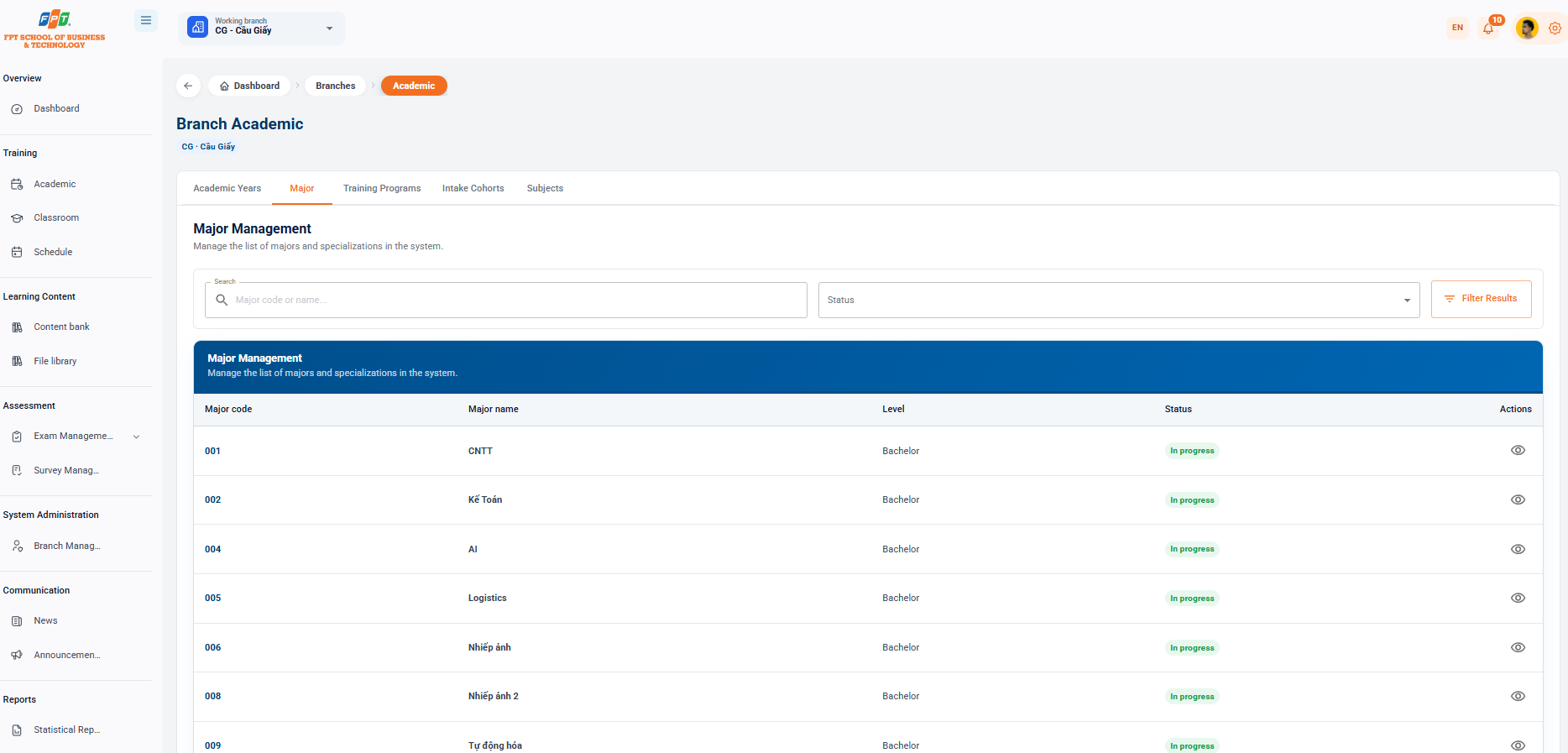
Manage the list of disciplines and specialties allowed for admission and training at the branch.
2.1.1. Searching and Filtering Majors
- Search: Enter the industry code or industry name in the Code or industry name box....
- Status filtering: Use the drop-down list to filter the sectors (Training, Stops, etc.).
- Apply filtering: Click the [Final] button to perform the search.
2.1.2. Viewing the Major List
The data table shows industry details:
- The field code: The field code (e.g. 001, 002, 004).
- Name of the field: Name of the field of training (e.g. IT, Mathematics, AI, Logistics).
- Branch: Applicable branch (e.g. Paper Branch).
- Degree: The corresponding degree (e.g. University).
- Status: The label indicating the status of the education (Training).
2.2. Academic Year and Term Management
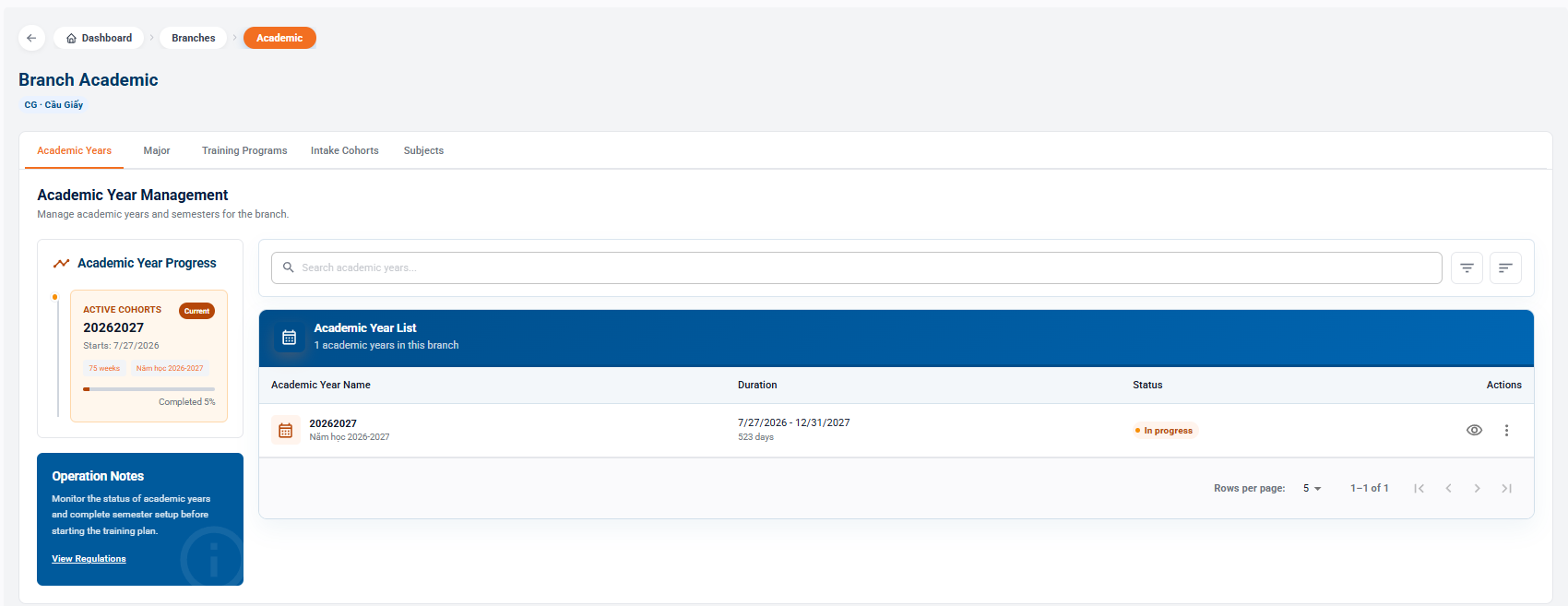
Manage the academic year, term and real-time training progress of the branch.
2.2.1. Creating and Monitoring Academic Years
- Add an academic year: Select [+ Create Academic Year] in the upper-right corner.
- Follow up on progress:
- Current academic year: Displays the current academic year in operation (e.g. 20262027) with the Current label.
- Quotations: Total number of weeks (e.g. 75 weeks) and progress bar completed (e.g. 5% completed).
2.2.2. Academic Year List and Actions
- Table information: Displays the academic year name, period (for example, July 27, 2026 to December 31, 2027), duration (523 days), and status (Ongoing).
- The Action Column:
- Eye icon: View the academic year and semester configuration.
- Pencil icon: Edit the academic year information.
- Symbol: Open the list of extended operations.
2.3. Academic Program Management
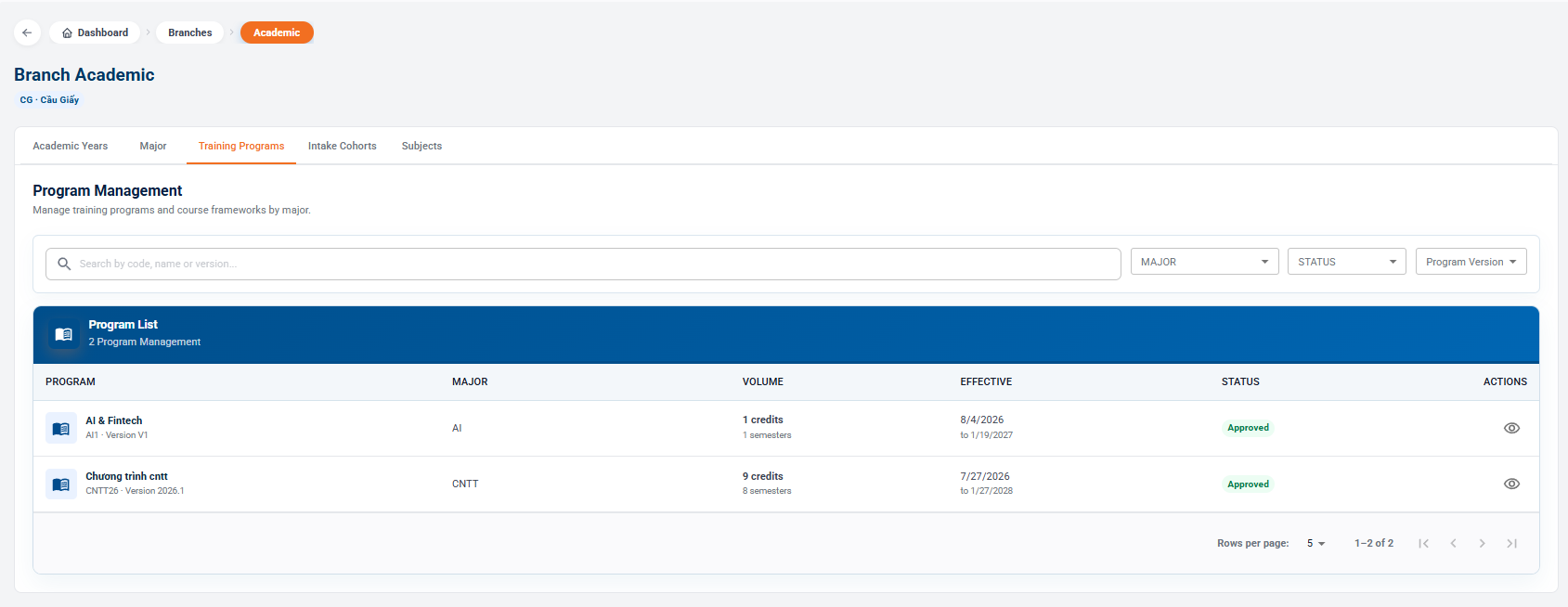
The management of the training program and the subject category is structured by discipline.
2.3.1. Creating and Searching Academic Programs
- Start: Click the [+ Create Program] button in the right corner of the interface.
- Search: Enter the information to be searched in the Search box by code, name or version....
2.3.2. Managing Academic Program Information
- Program name & Version: For example: AI & Fintech (Version V1), Program cntt (Version 2026.1).
- Linked disciplines: The corresponding disciplines apply this framework (e.g. AI, IT).
- Training volume: Total credits and the number of terms prescribed (e.g. 1 credits - 1 term, 9 credits - 8 term).
- Effectiveness & Status: Applicable time (e.g. 27/7/2026 to 27/1/2028) and approval status (Authorized).
- Activation: Use the View Details, Correction, or Other Activation icons in the outer column.
2.4. Cohort Management
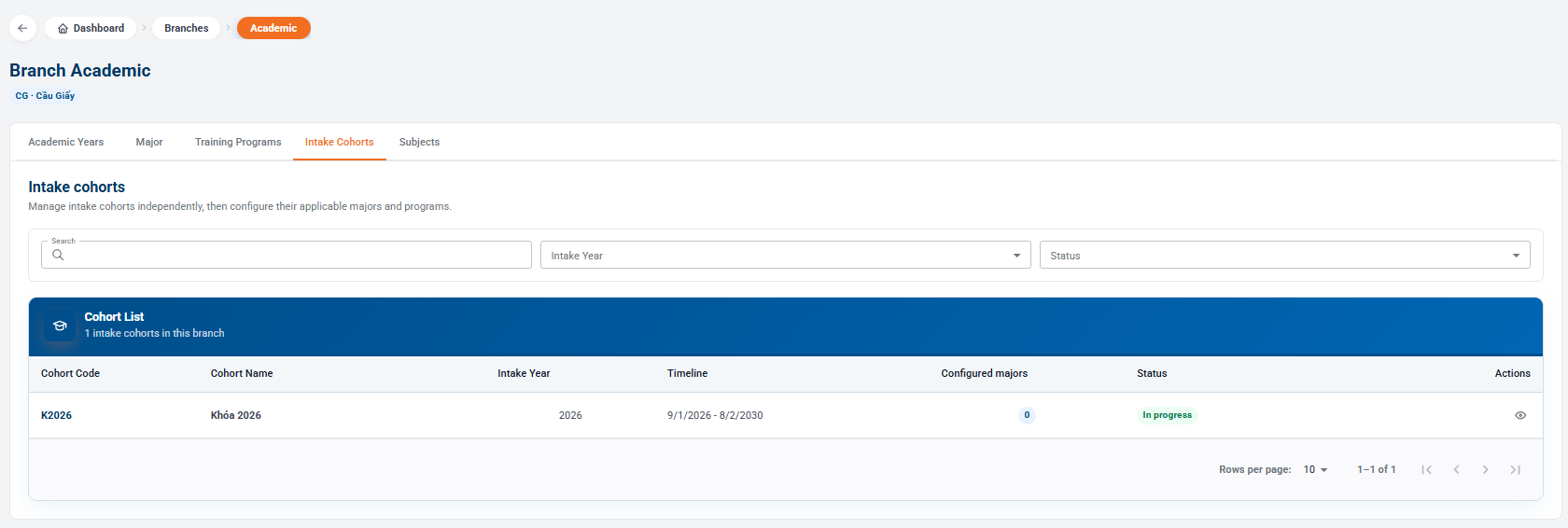
Manage the official admissions courses of each training program.
2.4.1. Cohort Filters and Statistics
- Quickly counting:
- Total courses: Number of courses available in the branch (e.g. 1).
- Active: Number of locks in operation (e.g. 1).
- The most recent key: Name of the most recent key (e.g. 2026 key - Closed: September 1, 2026)
- Fast filters (Time/Schedule filters):
- Through Year of Admission, Program, Status or enter the key code or key name....
2.4.2. Cohort List and Actions
- Create a course: Click [+ Create a course].
- See details of the table: Manage the parameters Course Code, Course Name, Affiliate Program, Year of Admission, Training Period and Status (Ongoing).
2.5. Subject Catalog Management
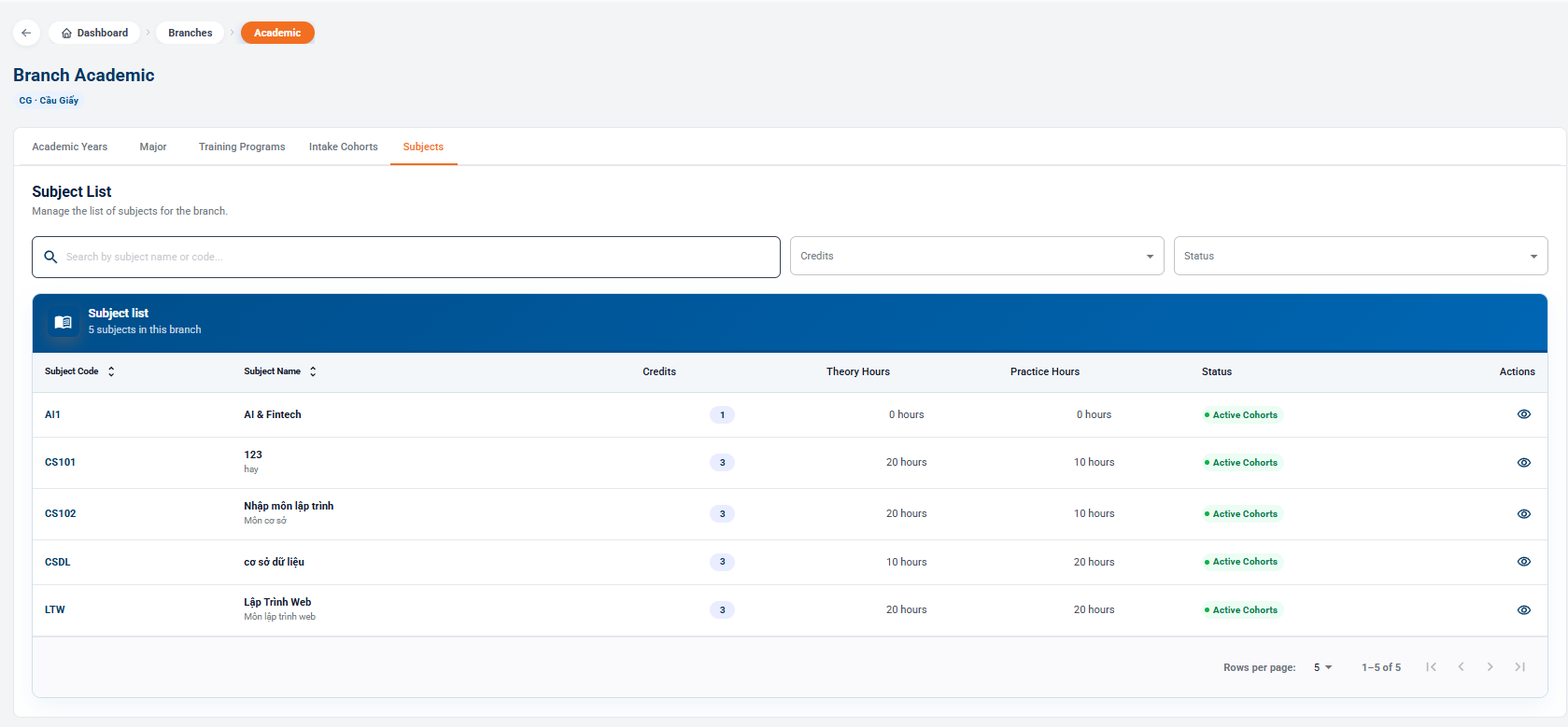
Creates and manages the entire disciplines of the branch, establishing the number of credits and the theoretical/practicing duration.
2.5.1. Searching Subjects
- Search: Enter the keyword in Search by name or subject code....
- Attributes filter: Read the list by Credit Number or Status (Activated).
2.5.2. Configuring Subject Details
The subject data table provides standardized information:
- Academic code: The code for identifying the subject (e.g. AI1, CS101, CS102, CSDL, LTW).
- Subject name: Detailed name and subject category (e.g. Programming subject entry - Basic subject, Web Design - Web Programming subject).
- Number of credits: The number of convertible credits of the subject (e.g. 1, 3).
- Theoretical hours / Practice hours: Regulation of the allocation of learning hours in class (e.g. 20 hours of theory - 10 hours of practice).
- Status & Activity: Display the Activity label and click the icon [Eye] to view the information/scholarship.