
Branch Management User Guide
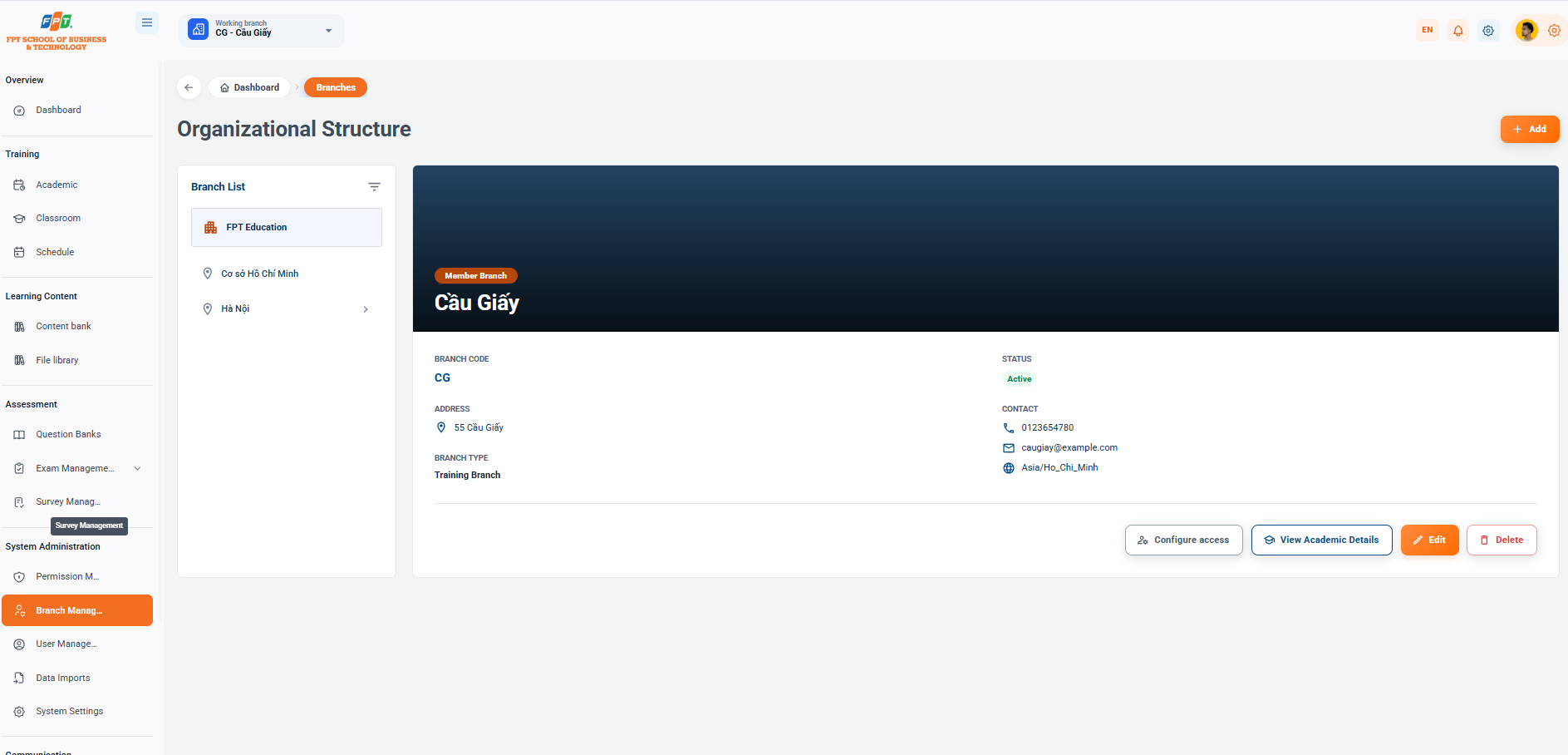
The Branch Management System under the System Management category assists administrators in establishing organizational structure, reporting and information management of units, branch, and educational institutions.
11.1. Organizational Structure Overview
- Breadcrumb: General > Branch.
- Title: The structure of the organization.
- Functional Portal: Click the [+ Add] button (orange) in the upper right corner to set up a new branch or membership base.
11.2. Branch List (Left Column)
Provide the tree with organizational catalogue and list of member units:
- High level organization: FPT Education (Bildings Symbol).
- The following branch/branches:
- Ho Chi Minh City
- Hanoi (with extended category)
11.3. Branch Details (Cau Giay Branch)
Displays the entire configuration and contact data of the selected member unit:
- Name of the unit: Paper (Classification card: Member branch)
- Branch code: CG
- Status: Activated (blue mark)
- Address: 55th Street
- Branch type: Training branch
- Contact information:
- The phone number is 0123654780
- Email: caugiay@example.com
- System time: Asia/Ho_Chi_Minh
11.4. Available Actions
- [Configuration of permissions] Set up the permissions that apply exclusively to the current branch.
- [See Philosophy] Quickly switch to the branch's learning and training management screen.
- Edit button: Edit address, contact and branch type information.
- [Remove] button: Remove branches from the system's organizational structure.