
Administrative Class Management User Guide
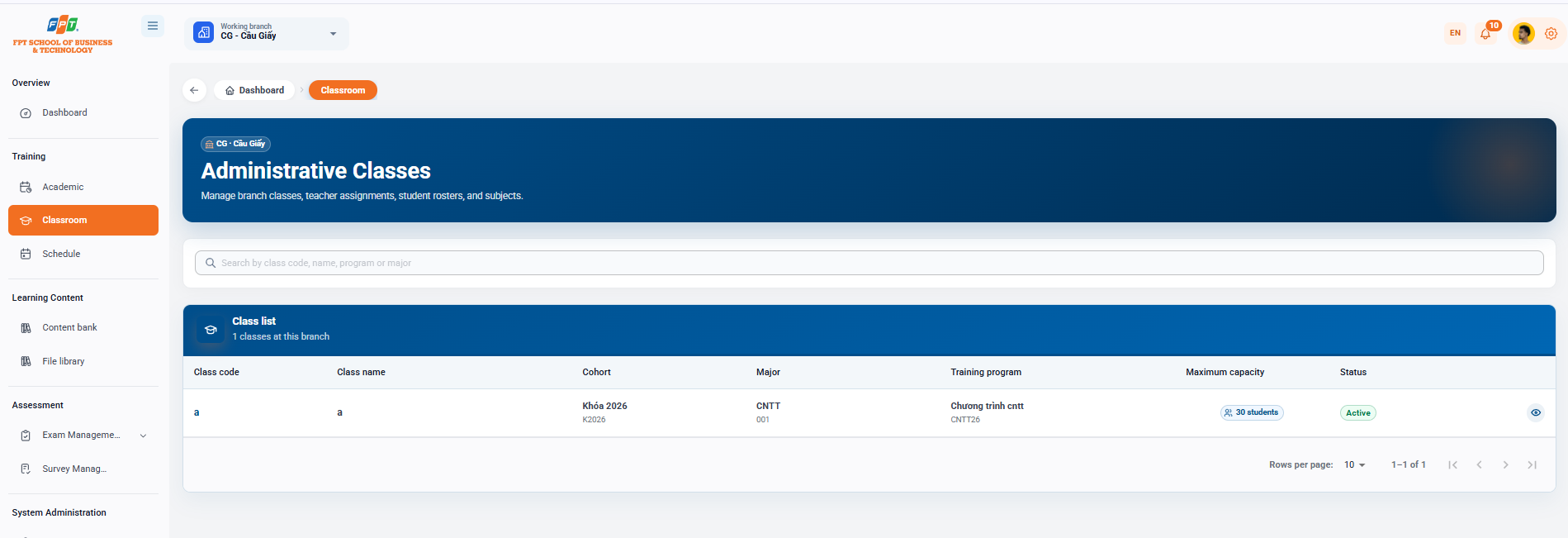
The Classroom System supports administrators and academic staff in managing administrative class lists, faculty assignments, student lists as well as branch subjects.
3.1. Administrative Class Interface Overview
- Breadcrumb: Display the route to the operation location: Overview > Class.
- Function description: Manage the branch's class list, instructor assignments, students, and subjects (for example, CG - Cau Giay Branch).
3.2. Searching Administrative Classes
- Search box: Enter the keyword to search for in the Search box by class code, class name, program or field.
- Filtering mechanism: An automated support system that searches and returns the corresponding results by identification code, class name or corresponding discipline.
3.3. Administrative Class List
The data table manages the main information of each class in the branch:
- Class code: The unique identifier of the class.
- Class name: The official name of the administrative class.
- Program/Sector: The curriculum of the training or specialization to which the class belongs.
- Maximum score: Limit the maximum number of students allowed in a class.
- Status: Class operating status (Activated, Waiting open, Finished...).
3.4. Configuration and Pagination
- Empty status: When a branch has not yet started a class, the system will display the message "This branch does not yet have an administrative class".
- Customize the number of lines displayed: Select the number of records displayed on each page through the drop down menu Number of lines per page (default: 10 lines).
- Page navigation: Use the $[\vert{}<]$$[<]$$[>]$$[>$$[>\vert{}]$$ buttons in the bottom right corner of the table to switch back and forth between data pages.