
Mama Dashboard User Guide
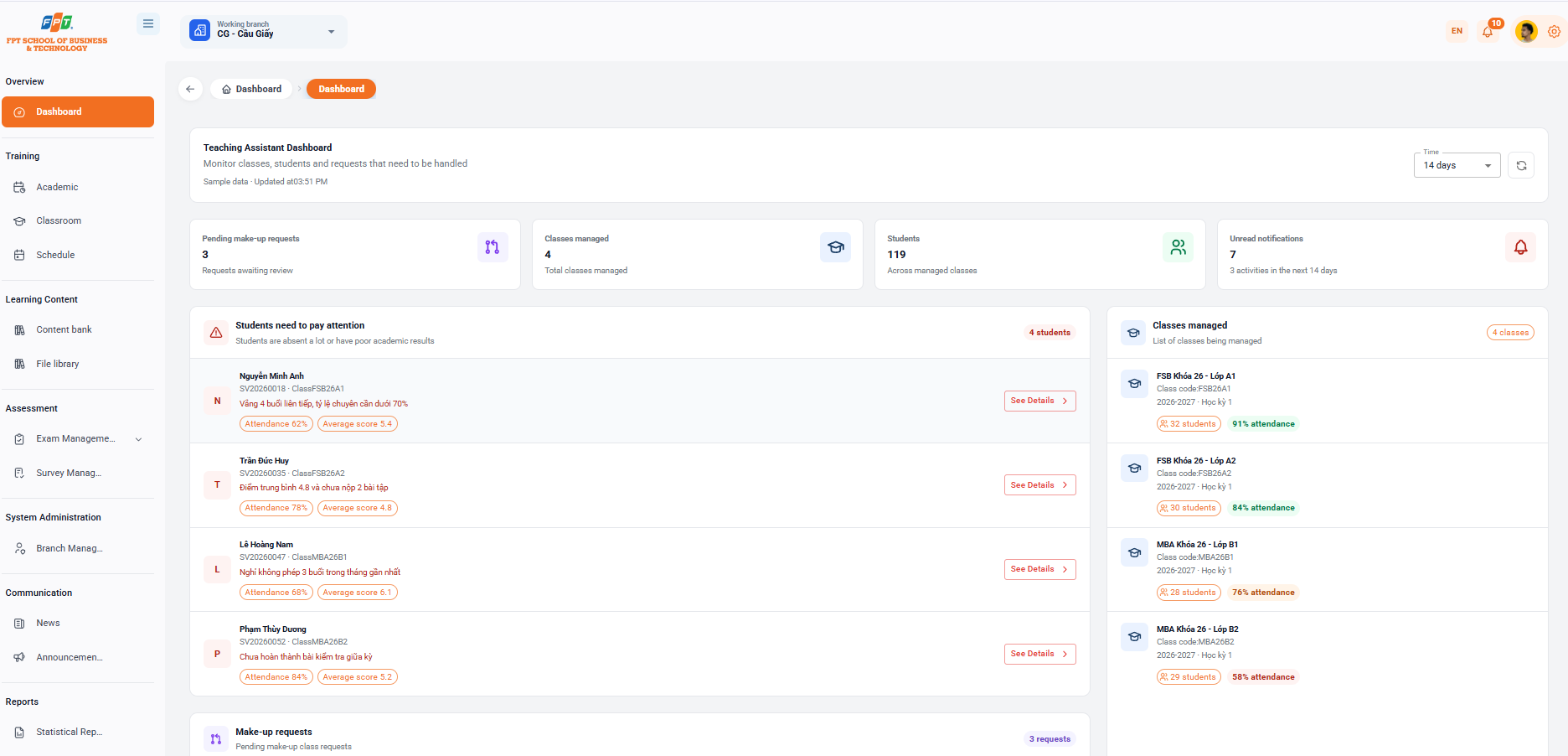
The Assistant Professor General page provides an overview of the classes that are assigned, the list of students to be specifically monitored, and the class make-up requirements to be approved.
1.1. Monitoring Summary Statistics
- Makeup class requests pending approval: Indicate the total number of unprocessed makeup class requests from students.
- Class of responsibility: Displays the total number of classes that the assistant is directly managing.
- Students: Total number of students in the classroom.
- Notice not yet read: Update the number of notifications and new activities for the next 14 days.
1.2. Managing Students Requiring Attention
The system automatically alerts the list of students with high absenteeism or poor academic results to timely assistance to intervene:
- See the warning:
- Identification information: They are the name of the student, the SV code and the respective class.
- Status details: Quickly look at the reason for the warning (e.g. Four consecutive absences, No admission for three sessions, Not completed examination).
- Assessment score: Check the label for the percentage of the required percentage and the average score (TB) of the student.
- Processing of information:
- Click the [See Education >] button at the respective student line to access the detailed profile and learning history.
1.3. Approving Student Make-Up Class Requests
Assisting faculty to receive and process classroom makeup applications quickly:
- Review the make-up class request information:
- Identify the student information (name, code, class, monology).
- Review the request details, including the missed session, reason for absence (for example, certified sick leave), and submission time.
- Approval of the following:
- Click the button [Done] (blue): Consent to allow the student to participate in a registered make-up class.
- Click the [From the File] button (red): You cancel the request if the reason or profile is invalid.
1.4. Monitoring Assigned Classes
Provide a general overview of each classroom by the assistant professor:
- See the class list: Access the task class card in the right corner of the screen.
- Check the information for each class:
- Class code & Class name: For example: FSB Key 26 - Class A1 (FSB26A1), MBA Key 26 - Class B1.
- Score: Number of students currently in the class (e.g. 32 students).
- Specialist Rate: Average grade point ratio for the entire class (e.g. 91% grade point). The following is a guide to using the Discrimination of Teaching (Training) material structured according to a header system (Heading 1, 2, 3...) that is fully compatible with Google Docs: