
File Library User Guide
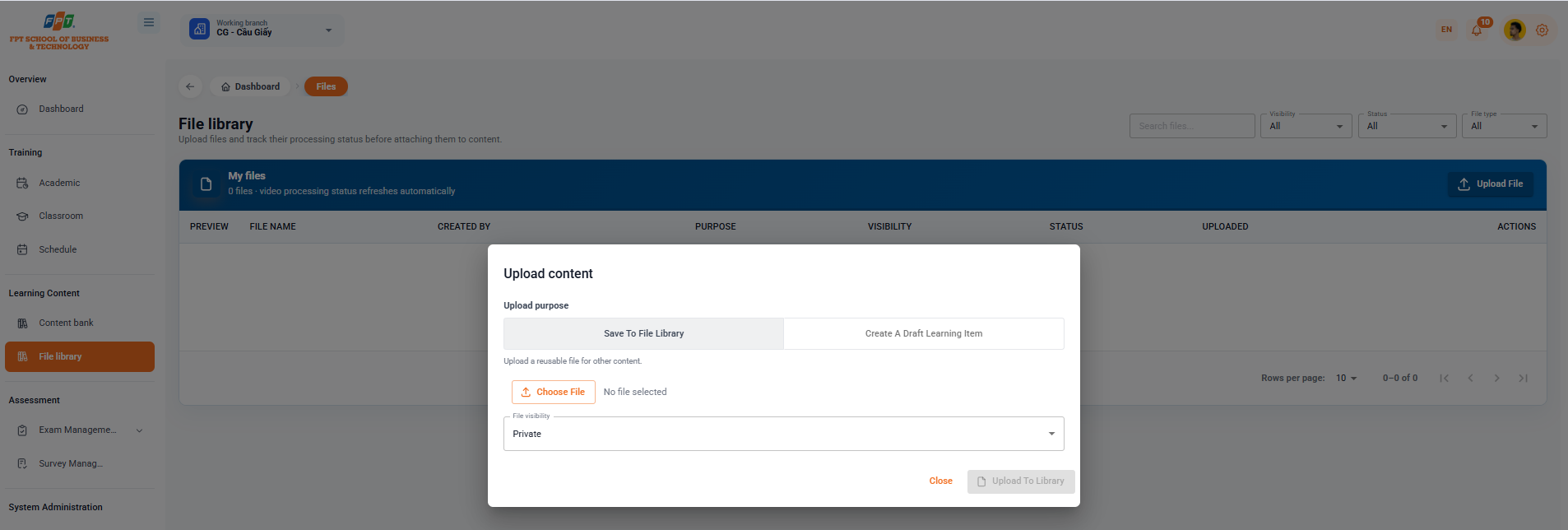
File Library system allows users to upload, manage and track the processing status of media files (video, document) before formally attaching to academic content.
6.1. File Library Interface and Filters
- Breadcrumb: Overview > File
- Functional description: Upload and track the automatic file processing status.
- The search filter:
- Search: Enter the file name in the Search box.
- Scope: Read the list by share level (All, Individual, Branch...).
- Status: According to the file's processing status (All, Current, Finished...).
- File type: According to the file format (All, Video, Document...).
6.2. Personal File List
The data table displays detailed management information for each file:
- View first: Quick view icon of the file content.
- File name: Full name of uploaded file.
- Creator: Name of the account that executes the file upload.
- Purpose: Unit/Content using the file.
- Scope: Access permission level of the file.
- Status: Processing progress of the system (e.g. automatic video processing).
- Load date: Time the file is loaded to the system.
- Activation: Expanded management nodes (download, edit, delete files).
6.3. Uploading Content to the Library
6.3.1. Opening the Upload Window
- At the File Library interface, click the [Download File] button in the right corner of the screen.
- The upload window will appear.
6.3.2. Configuring Upload Information
- Purpose of upload: Choose one of two configuration options:
- Save to File Library: Upload files for reuse in other content.
- Create a response therapy: Upload the file and start a corresponding response therapy.
- File Selection: Click the [Select File] button to download the file from the computer (shows the Unselected file or selected file name status).
- File range: Select the access sharing level in the drop-down list (e.g. Personal).
6.3.3. Completing the Upload
- Click the [upload Library] button to allow the system to process the file.
- Click [Call] if you want to cancel the operation. The following is a section of the Guide to Use Survey Management (subject to Survey and Review) documentation that is prepared in conjunction with the Heading 1, 2, 3...) standard of hierarchical title structure that is fully compatible with Google Docs: