
Exams
17. Exams Page
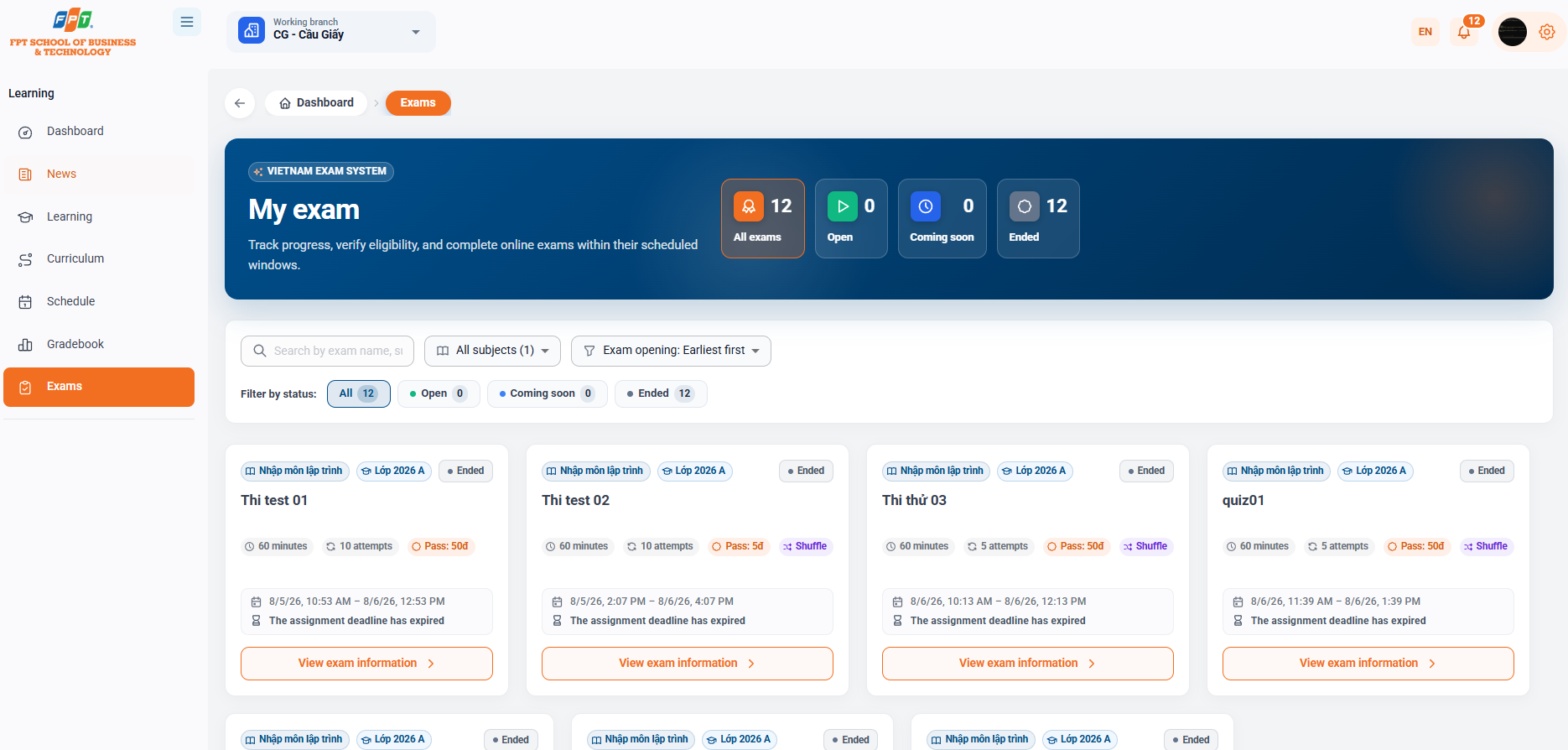
The Exam Scheme helps students manage the entire online exams, checking progress, number of rounds, duration of participation and the score/loss of the assessments.
17.1. Exam Statistics
- All exams: Total number of exams/quizes available in the system for students (e.g. 12).
- Opening of the paper: The number of tests that are in the time allowed to do the paper (e.g. 0).
- Frequency: Number of tests not yet open (e.g. 0).
- Finished: Number of tests that have expired or have closed (e.g. 12).
17.2. Exam Filters and Search
- Oh search: Enter the keyword Search by exam name, subject to quickly find the exam to be done.
- Filter by subject: Select a specific subject's exam from the drop-down list.
- Arrangement filter: Arranging lists by criteria (e.g. Opening: First to the last).
- Following the fast mode: Quick click cards to filter: All, Opening, In the near future, Finished.
17.3. Exam Cards
Each exam/quiz is presented as a visual information card:
- Tag header: subject name (Programming subject), Class Code (Class 2026 A) and Status Label (Completed).
- The name of the exam: For example, test 01, test 02, test 03, quiz01.
- The format of the exam:
- Time of work (e.g. 60 minutes).
- Limit the number of rounds (e.g. 10 rounds, 5 rounds).
- Minimum score (e.g. 5 degrees).
- Mixing the question mode.
- Opening time: The time allowed for the card (e.g. 14:07 5/8/26 - 16:07 6/8/26).
- Action: Click the [See exam information $\rightarrow$] button to enter the exam details page and view the history of the exam.
18. Exam Details and Attempt History
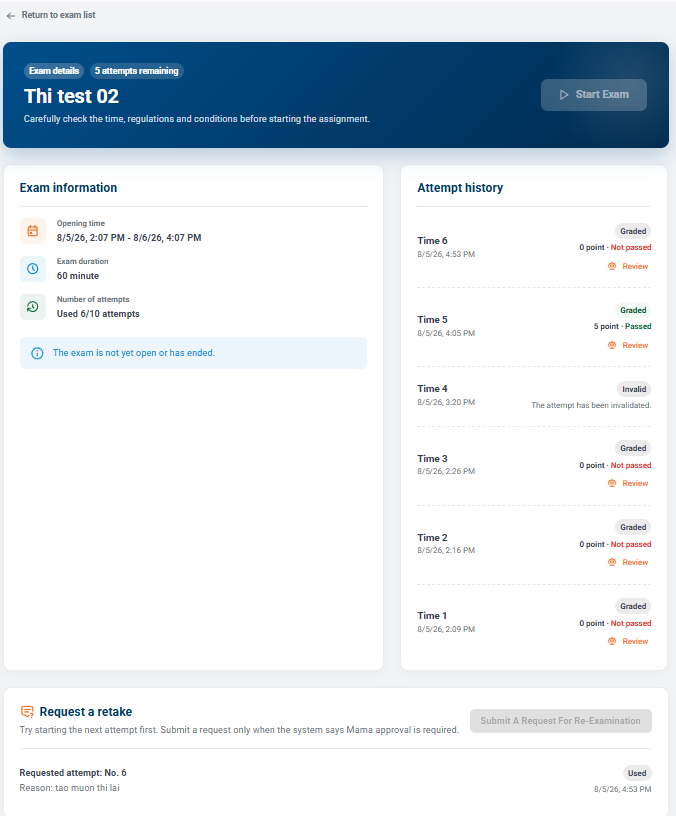
When you click on [See test information], the system moves to the page that configures the exam details and the entire history of previous assignments.
18.1. General Information and Start Exam Button
- Test header: Displays the test name (e.g. Test 02) and labels the number of remaining rounds (e.g. 5 rounds).
- [$\Triangleright$ Start Task button]: Enable the task entry button (only activated when the test is in the open time and the student is left with the task).
18.2. Exam Configuration
Opening time: The deadline for the specific system that allows submissions.
- Time of work: The number of minutes specified for each shift of work (e.g. 60 minutes).
- Number of rounds: Statistically estimate the total number of rounds performed on the total number of rounds allowed (e.g. 6/10 rounds used).
- System notification: A test availability alert (e.g. "Exam is not yet open or has ended").
18.3. Attempt History and Grade Appeals
Displays a list of all the times the student submitted the paper in chronological order:
- The information for each post:
- The order of the examination (e.g. 1, 2, 5, 6...) marks the date of the specific submission.
- Status of the score: Scored, invalid (if the rule is violated or the turn is cancelled).
- Scores & Results: Scores achieved with the same color classification label (Flat - blue or Unreached - red).
- Grade appeal function: Click the [$\Delta$ Grade appeal] button at each respective exam if the student has questions or needs to review the test score.
18.4. Retake Requests
- Submit a request for additional examinations in case the student has completed the assignment or the examination requires approval from the administrator/system.
- Activity: Click the [Send Request] button when notified by the system or as instructed by the instructor.