
Class and Make-Up Schedule Management User Guide
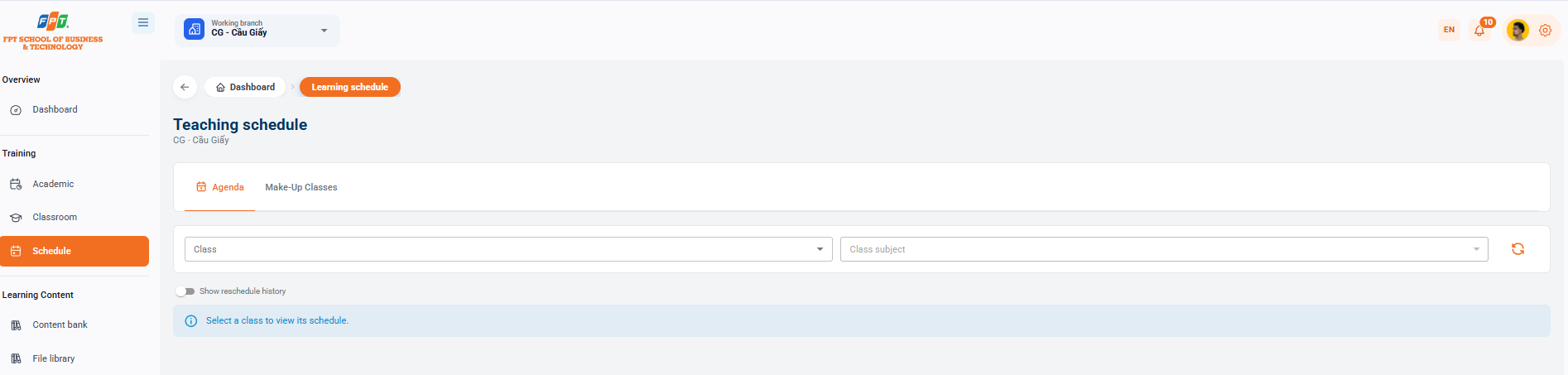
The Teaching Schedule function lets users search regular schedules for administrative classes and manage make-up class requests.
4.1. Searching Regular Class Schedules (Weekly Schedule Tab)
Assist the manager/lecturer to keep track of the timetable details of each administrative class or specific subject at the branch.
4.1.1. Filtering Class Schedules
- Select Administrative class: Click the drop-down list below Administrative class to select classes that need to be studied in the timeline.
- Reading by M. A.: Click the M. A. box to separate the time of a specific subject in the chosen class.
- Refresh button: Click the RET button to refresh the filter data.
- "History now moved": Switch the switch if you want to review previously changed or rescheduled sessions.
4.1.2. Viewing Search Results
- Class not selected: The instructional message display system: "Choose class to view the calendar".
- After selecting the class: The interface will load the entire calendar grid corresponding to the class and subject selected.
4.2. Managing Make-Up Class Requests
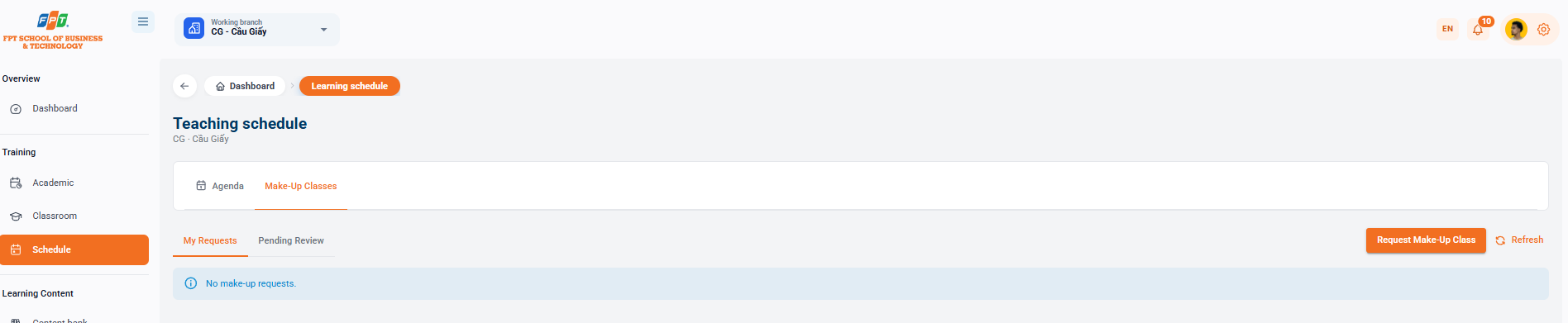
Assists in managing the list of class make-up applications, tracking approval progress and submitting requests for new filling schedules.
4.2.1. Managing Request Categories
- My Preferences tab: List of class make-up requirements initiated or managed by staff/assistants.
- The list of makeup class applications from students is pending for handling.
- Empty state: If there are no requests, the system displays "No make-up class requests."
4.2.2. Make-Up Class Actions
- Create Makeup Class Requirements: Click the [Call Makeup class] button (orange) in the right corner of the interface to start and schedule a new make-up class for the student or class.
- Update the list: Click the [Return] button (round icon) to update the list of new requests sent in real time.