
Lesson Repository User Guide
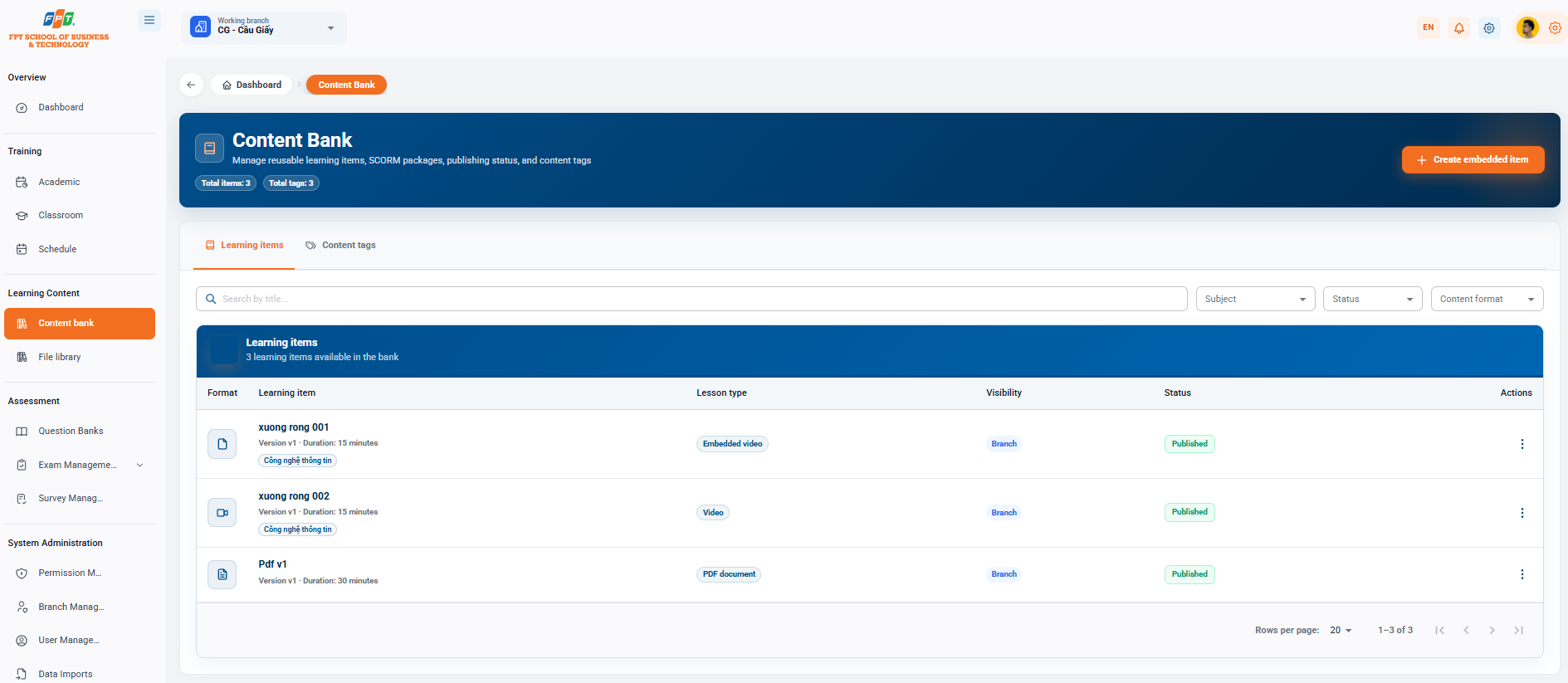
The Lesson repository system is a subset of the Learning Interior that supports reuse management, SCORM packages, publishing status and content tag systems.
5.1. Managing Learning learning materials
5.1.1. Overview and Filters
- Statistical tab: Displays the total number of learning learning materials and total number of content tabs in the system.
- Search and Results:
- Search by topic in the Search by topic cell.
- Upgrades by dropdown menu: Education, Status, Formatting of the subject.
- Functional: Click [+ Create Embedded learning materials] (orange) to start the new embedded learning materials.
5.1.2. Learning learning materials List
Displays a list of available learning learning materials in banking:
| Formatting | Content of the study | What Lesson | The scope | The State | The work |
|---|---|---|---|---|---|
| The document symbol | xuong rong 001 (Version 1 - Duration: 15 minutes) Information technology | Embedded video | Branches | Published | Score three points (optional) |
| The video icon | xuong rong 002 (Version 1 - Duration: 15 minutes) Information technology | Video | Branches | Published | Score three points (optional) |
| The PDF icon | Pdf v1 (Version 1 - Duration: 30 minutes) | The PDF | Branches | Published | Score three points (optional) |
5.2. Creating Embedded Learning learning materials
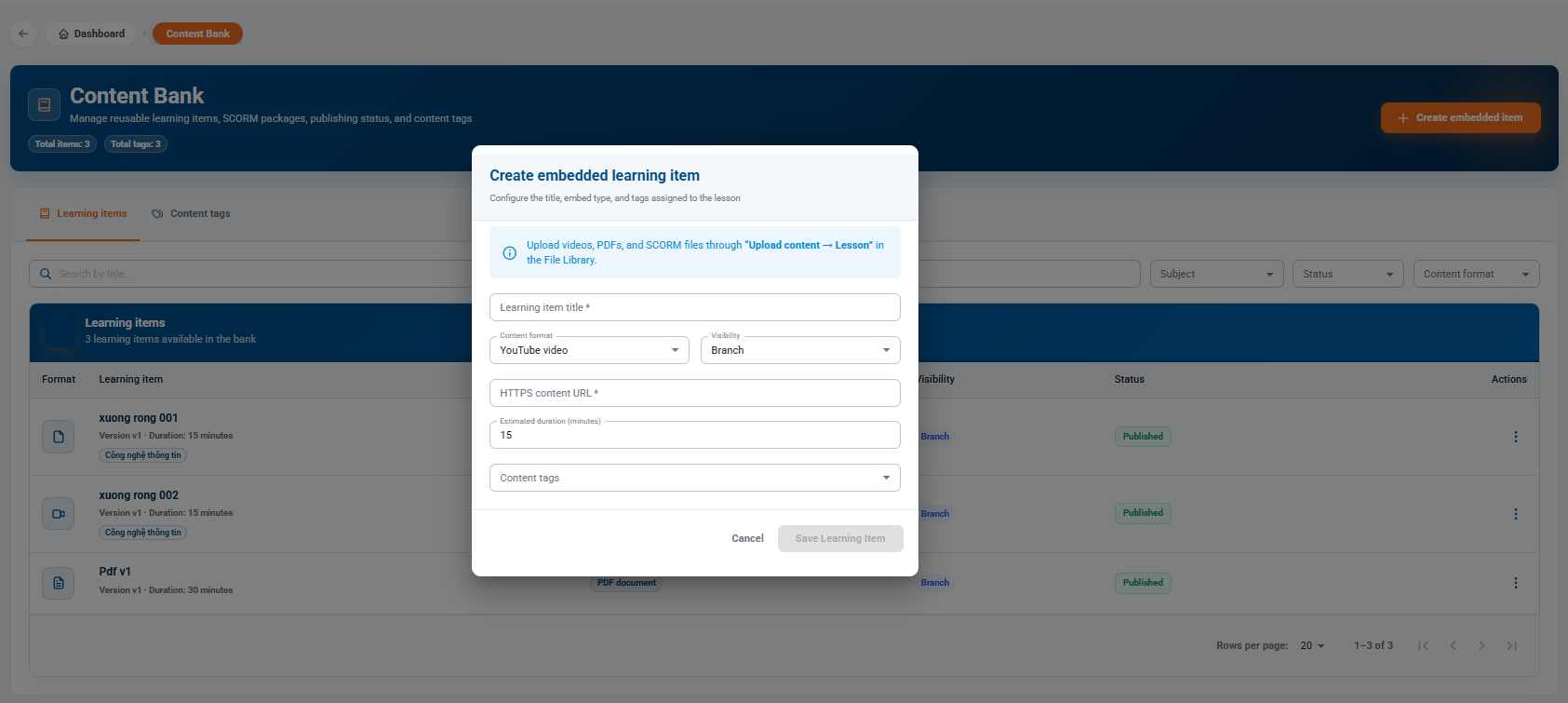
- At the main interface, click the [+ Create Embedded Learning] button.
- In the new Embedded learning materials Creation window, set up the information schools:
- The name of the object is shown.
- Format of learning materials: Select the type of link (e.g. YouTube video).
- Scope: Select the display range (default: Branch).
- HTTPS content URL path (*): Send links to content that contains standard HTTPS paths.
- Expected time (minutes): Enter the time to complete the lesson (default suggestion: 15).
- Content cards: Select the applicable subject classification cards.
- Click [Delete] to record or [Delete] to close the window. Note: For Video, PDF, or SCORM file formats, users perform live uploads at the "upload Content -> Lessons" stream in the File Library section.
5.3. Content Tag Management
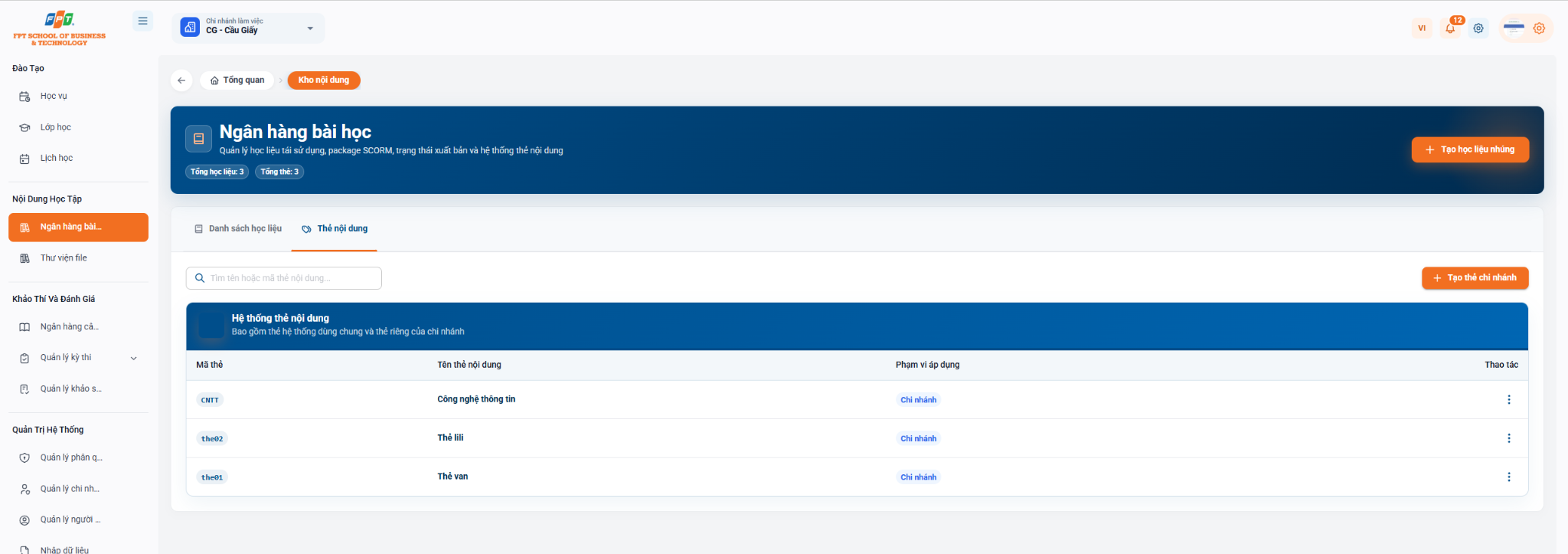
Content tag systems help classify and link learning by topic or discipline.
- Function: Click [+ Create branch card] to add the new classification card.
- Search box: Search by name or tag code in the search box Search by name or tag code content....
- The list of content tags includes: | Card code | Name of the content tag | Scope of application | The work | | --- | --- | --- | --- | | CNTT | Information technology | Branches | Make three points. | | Card two | Card two | Branches | Make three points. | | Card one | The card | Branches | Make three points. |
The following is a documentary section of the Guide to File Library (Inner Study Content) compiled following the standard distributed title format for Google Docs: