
Learning Page
9. Learning Workspace
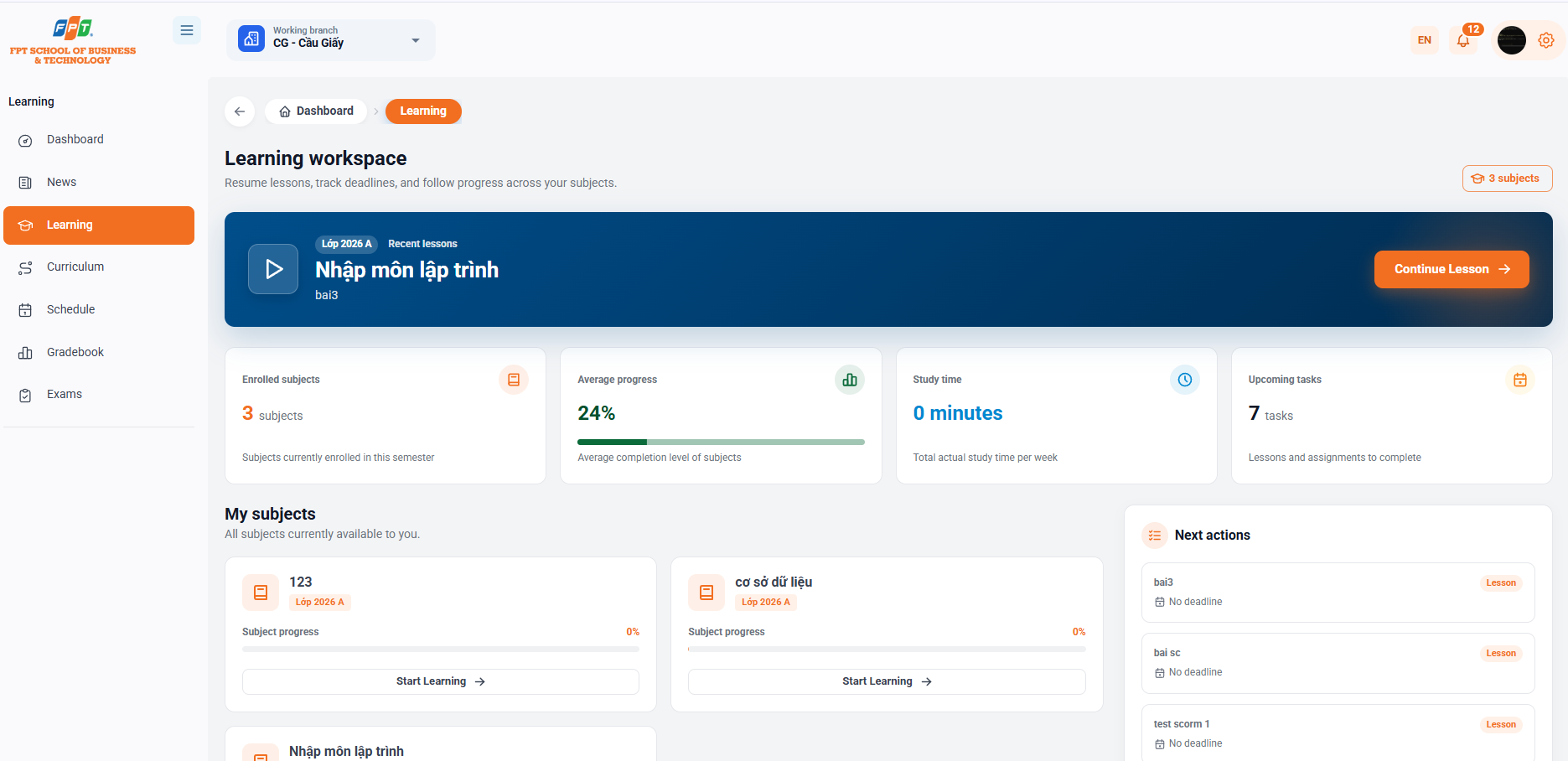
The Learning Page is where the student is allowed to continue the lectures that are pending, monitor the overall progress of the subjects and capture a list of tasks, exercises to be done.
9.1. Quick Access to the Most Recent Lesson
- Location: The prominent banner is placed at the top of the page.
- Function: Displays the most recent subjects and lessons that the student is accessing (e.g. Class 2026 A - Recent Lessons: Entering Programming - bai3).
- Activation: Click the [Return Lesson $\rightarrow$] button to enter the content that is being studied without going through the intermediate search operation.
9.2. Quick Learning Statistics
The system provides four general indicators to help students assess learning performance:
- Participation: Number of students being allowed to attend during the semester (e.g. 3 subjects).
- Average progress: Average completion rate is calculated on all subjects being studied (e.g. 24%).
- Learning time: Total practical learning time calculated during the week (e.g. 1 minute).
- Upcoming tasks: Total number of lessons, exercises or tasks to be done (e.g. 7 tasks).
9.3. My Subjects
Displays all the subjects that the student account is granted access to.
- Information on each subject card
- The name of the subject (e.g. 123, database, Programming entry).
- Code/Class name (e.g. Class 2026 A).
- Subject progress: Visualizes the percentage of completed coursework in that subject (e.g. 0%, 73%).
- Action: Click the [Instant Learning] button on each subject card to get to the detailed lesson interface of that subject.
9.4. Next Actions
- Location: Turn right of the screen.
- Function: List the lessons, exercises to be done next in order of priority.
- Categories of labels:
- Class classification: The items are class/learning content (e.g. bai3, Video lesson, test scorm 1).
- Task classification: Separate homework assignments or tests (e.g. middle brother test).
- Deadline: Specifies the deadline for submission (e.g. 10th grade, 8th 2026) or No time limit for students to actively arrange time.
9.5. Activity Chart for the Last Seven Days
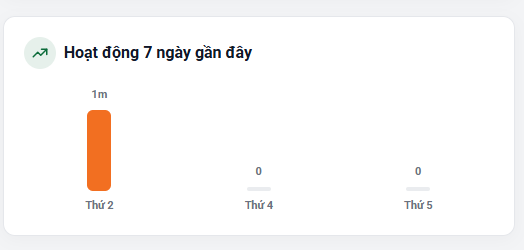
- Location: Down on the right side of the screen.
- Function: Demonstrate the interactive and learning time of the student by day of the week in the form of a column chart, making it easy for the student to track and maintain a regular learning routine.
10. Continue Learning Interface
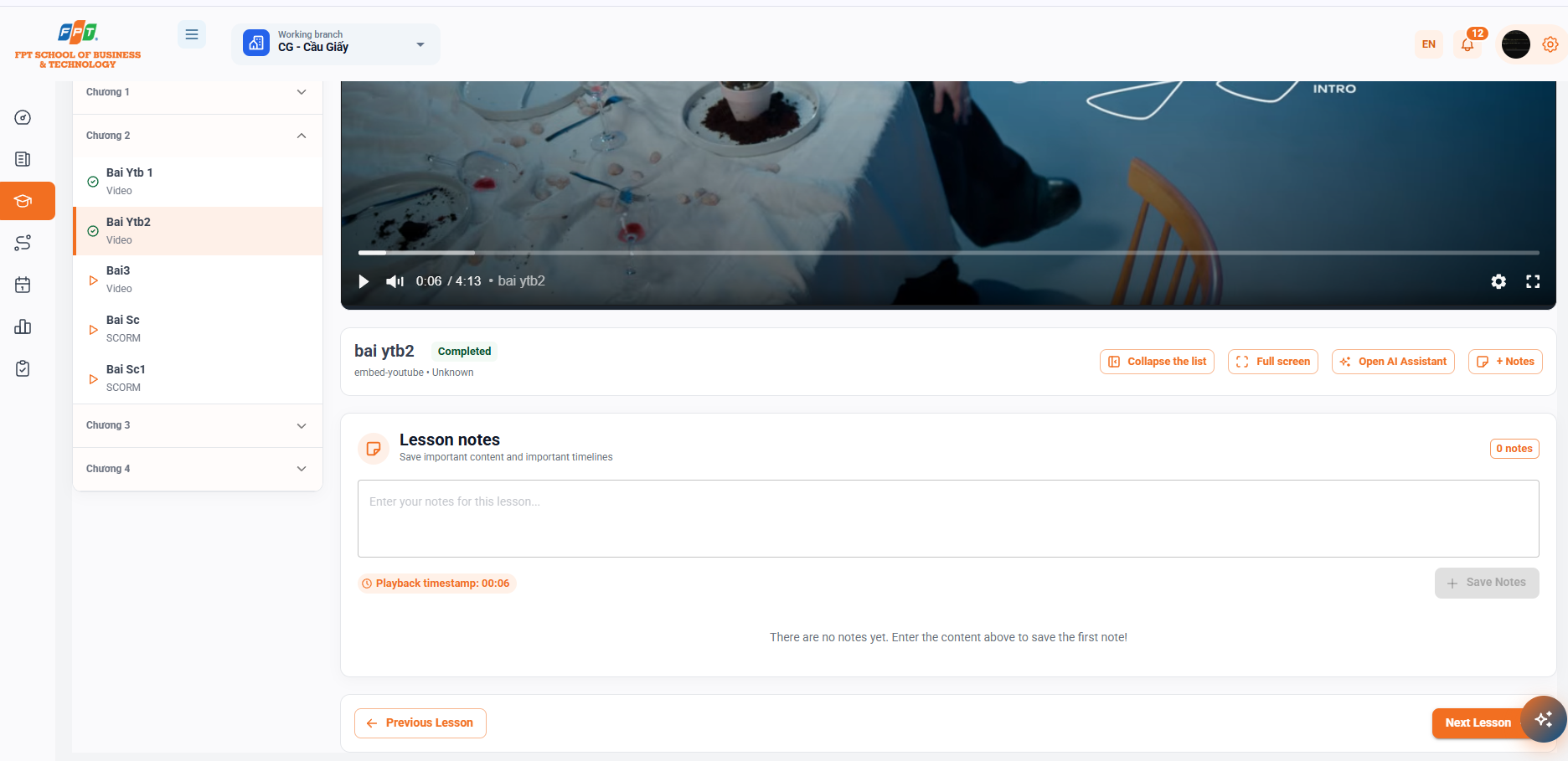
The lesson interface is optimally designed for knowledge acquisition with the video player/learning content, the program tree on the left and the add-on tools below.
10.1. Chapter and Lesson List
- Location: The column on the left side of the screen.
- Structure: Divide the lessons into chapters (e.g. Chapter 1, Chapter 2, Chapter 3...).
- The status symbol for the lesson:
- Blue mark ($\checkmark$): Lesson completed (e.g. Bai Ytb 1).
- Symbols are selected: Current Lessons are viewed (e.g. Bai Ytb2).
- Play icon ($\triangleright$): Lesson not completed or not yet seen.
- Lesson format: Clearly display content types such as Video, SCORM, etc.
10.2. Content Player and Controls
- The lesson screen:
- Support for live video streaming (such as embedded from YouTube or storage systems) with full time bar, volume, quality and full screen adjustment.
- Quick tools:
- [Shared list]: Click/click on the left-hand lesson bar to expand the viewing space.
- [Full screen]: Expand the video/content to the full screen.
- [Open AI Assistant]: Activate the dialog window that supports AI response.
- [+ Note]: Quickly open the frame to create personal notes.
10.3. Lesson Notes
- Incorporate notes: Allow the student to record important points or questions during the course of the lecture.
- Automatic timestamp: The system automatically marks the actual detection time of the video (e.g. Play Time: 00:06), allowing the student to attach accurate notes to the points to be noted.
- Activity: Click [+ Save Your Story] to save it to the personal notebook of the lesson.
10.4. Lesson Navigation
- [$\leftarrow$ Previous post]: Fast forward to the next lesson.
- [Next Next] Move on to the next lesson in the program.
11. AI Learning Assistant
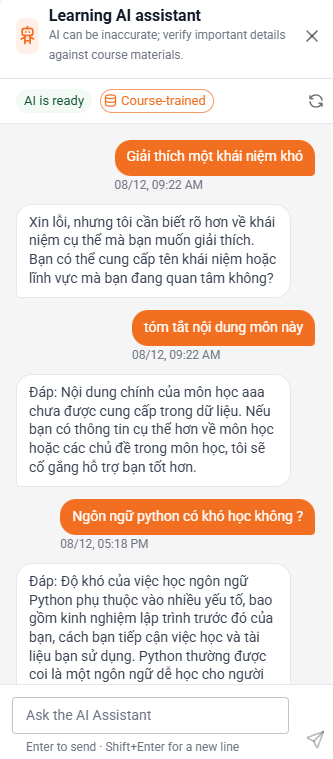
The AI Assistant Window acts as an online companion, supporting instant answers to student questions based on subject data.
11.1. Question Mode and AI Status
- State of the art:
- AI ready: Verify that the chatbot system is running steadily.
- Subject data mode: The AI prioritizes answers based on the subject's official content and curriculum to improve accuracy.
- System Note: AI makes the recommendation "AI may answer incorrectly; compare the subject material" so that students actively verify the information.
11.2. Chat and Knowledge Search
- Automated Answering: AI takes the student's question and gives detailed answers, helping explain concepts, summarize lessons, or guide homework.
- Context-aware search: If a question falls outside the subject data, the AI clearly informs the student so that they can consult a more appropriate source.
11.3. Message Input and Actions
- Enter the question: Enter the question content in the Ask a Question for AI Assistant box.
- A quick summary:
- Enter: Send the question to the AI quickly.
- Shift + Enter: Line up when writing long questions.
- Update button ($\circlearrowleft$): Enable a conversation to be re-downloaded or reset the AI consultation session.
12. Start Learning Page
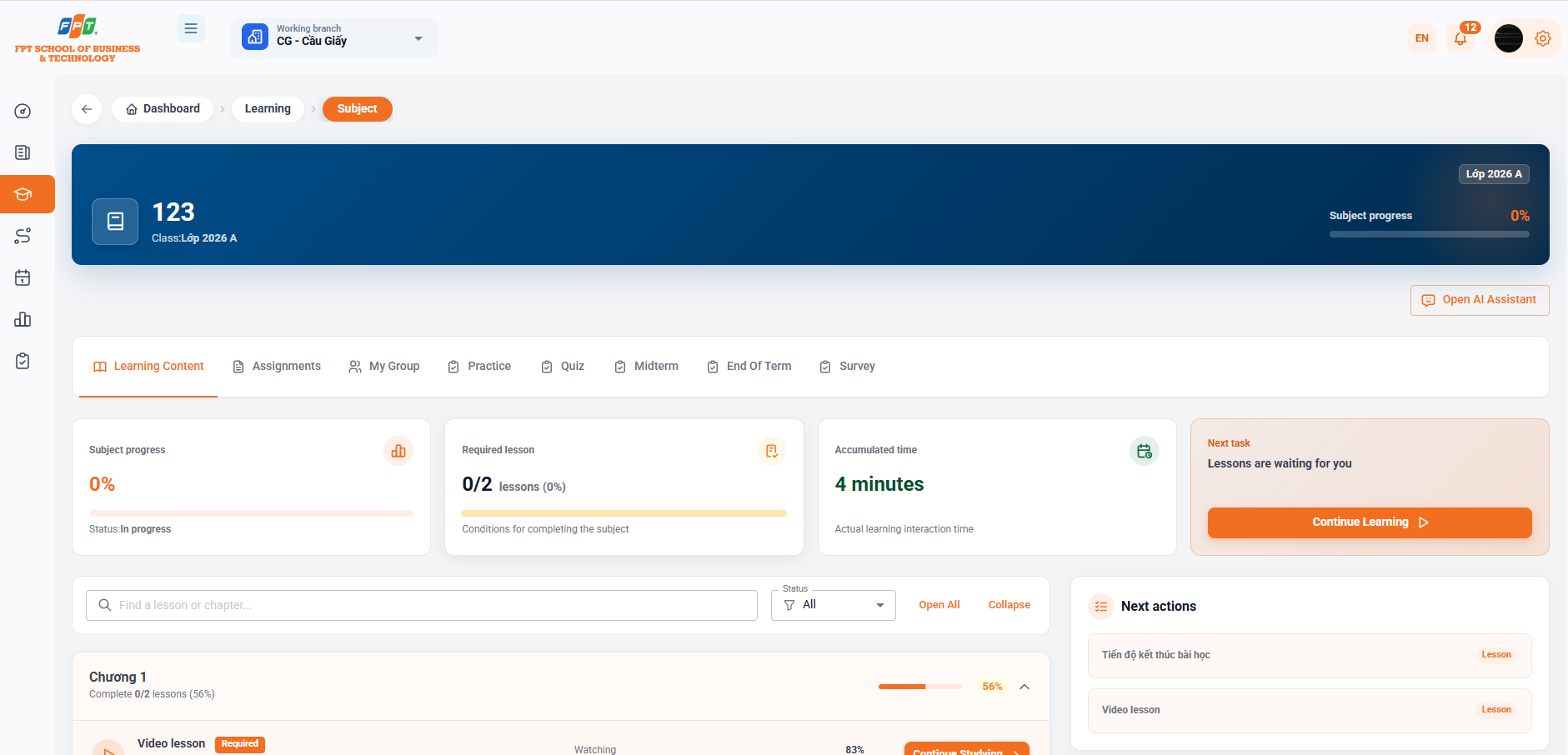
When a student selects [Instant Class $\rightarrow$] from any subject card, the system will navigate to the detailed overview page of that subject, including functional breakdowns, progress statistics, list of lesson chapters, and scoring mode.
12.1. Subject Navigation Bar
The system allows the flexible student to switch between function tabs in the same subject:
- Academic Content: A list that summarizes all the chapters and lessons in the program.
- Exercise: Manage self-exercise or compulsory exercise to complete.
- My team: Group work information and list of study group members.
- Exercises: Self-training knowledge tests/questions.
- Quiz / Mid-term / Late term: The questionnaire contains assessment tests in each stage.
- Survey: The forms survey the student's opinion on the subject/instructor.
12.2. Progress Statistics and Continue-Learning Shortcut
- Subject progress: Displays the percentage of total completion of the subject (e.g. 73%).
- Required Lessons: Statistically count the number of core lessons completed on total subjects (e.g. 11/15 subjects - 73%).
- Accumulated time: Total time the student actually interacts with the lecture (e.g. 12 minutes).
- Next task: Provide the [Instant Continuing Education $\rightarrow$] button to open the nearest pending lesson.
12.3. Detailed Chapter and Lesson List
The subject content is structured by Chapter and the corresponding list of lessons:
- Search and filter:
- Join us to find a lesson or chapter... to help you search the contents quickly.
- The Status Filter (All / Unlearned / Completed).
- The [Open All] / [Delete] tool helps to quickly turn on/off the list of lessons of the chapter.
- The information for each lesson:
- Title & Document Type: Displays clearly formats such as Video Lessons, PDF Documents, SCORM Lessons, YouTube Videos.
- "Compulsory": Marking the contents of the required coursework.
- Resume position: Accurately indicates the time mark the student has seen stops (e.g. Location: 03:53, Location: 00:20).
- Lesson progress: Shows the completion percentage for each lesson (100% or 0%).
- The button for action:
- [Review $\rightarrow$]: For the lesson completed 100%.
- [Next reading $\rightarrow$]: For lessons that are poorly studied or not yet studied.
12.4. Learning Mode Information
- Navigation mode: Free learning (or Learning in order according to the setting of each subject).
- Recording mechanism: The system automatically records the actual interaction time (verified_seconds) and saves the lesson position (resume_position) to assist the student to return to further learning at any time.