
Lesson Repository Teacher Guide
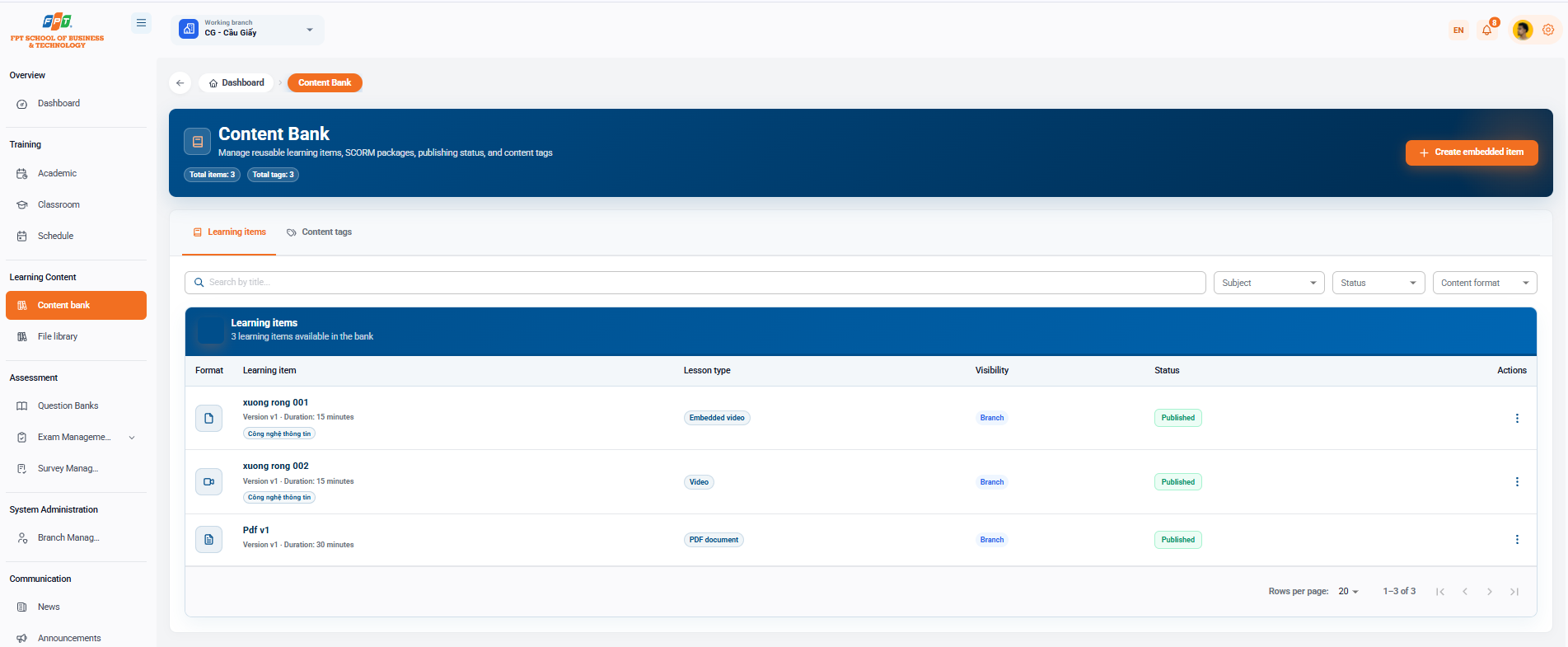
The Lesson repository system under the Learning Interior category assists faculty and content management staff to manage recycled learning learning materials, SCORM packages, publication status and content tag systems applied at the branch.
5.1. Overview and Function Tabs
- Breadcrumb: General > Content store.
- System Title: Lesson repository (Management of reusable learning materials, SCORM package, published status and content tag system).
- General statistics: General subjects: three. General card: three.
- The function tabs:
- List of learning materials: Manage the entire list of learning materials, videos, embedded lessons.
- Content tab: Manage the catalog of labels/tags of content.
5.2. Managing Learning learning materials
Filter & Search
- Search: Enter the lesson name in the Search box by title....
- Filters: According to the Mental, Condition, or Formatting of the Therapy.
Available Learning learning materials
The table of available academic learning materials in the bank (now there are 3 academic learning materials):
| Formatting | Content of the study | What Lesson | The scope | The State | The work |
|---|---|---|---|---|---|
| 📄 | xuong rong 001 (Version v1 · Duration: 15 minutes) Information technology | Embedded video | Branches | Published | ⋮ |
| 📹 | xuong rong 002 (Version v1 · Duration: 15 minutes) Information technology | Video | Branches | Published | ⋮ |
| 📄 | Pdf v1 (Version v1 · Duration: 30 minutes) | The PDF | Branches | Published | ⋮ |
5.3. Creating Embedded Learning learning materials
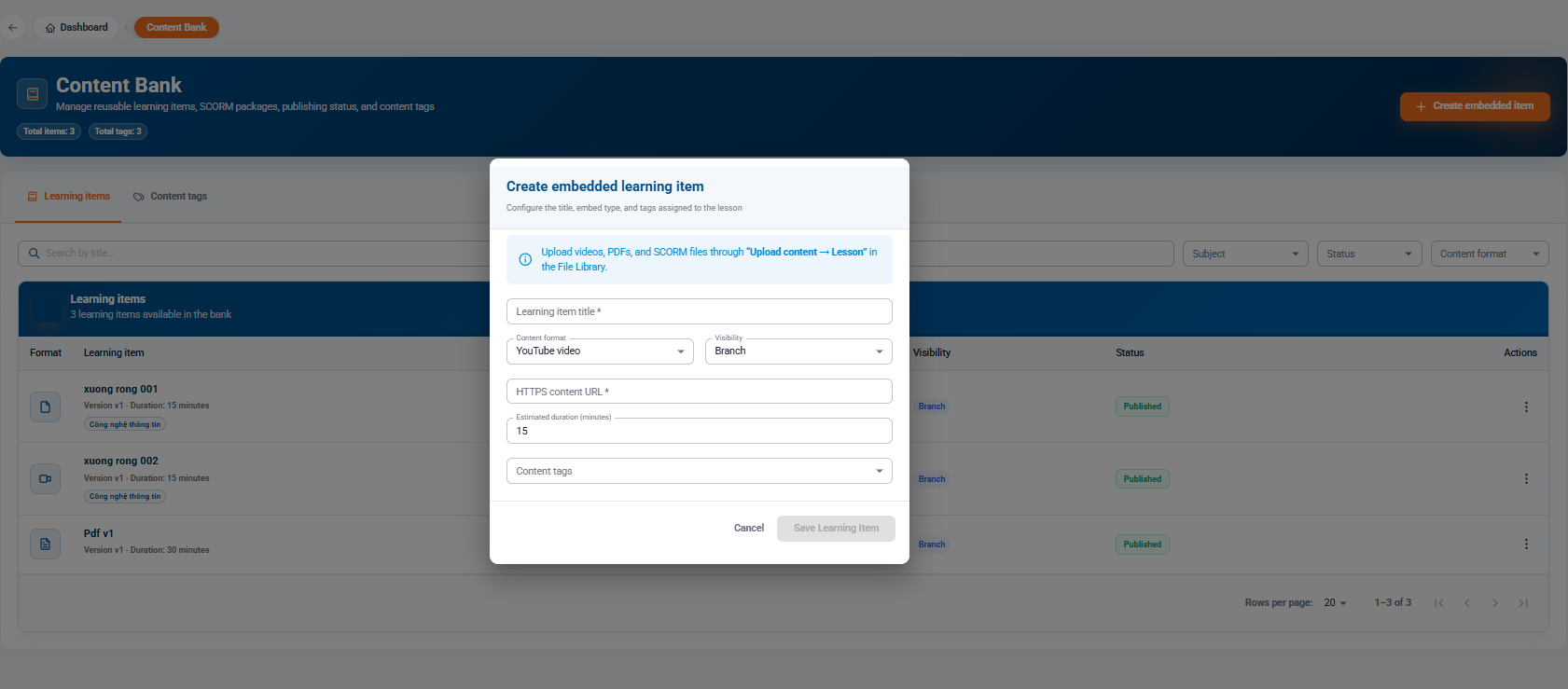
Click the [+ Create Embedded learning materials] button (orange) in the top right corner to open the configuration window:
Note: Video, PDF and SCORM formats are directly uploaded via the "upload Content → Lessons" stream in the File Library section.
Required Information Fields
- Teaching title (*): Enter the name of the lesson/teaching learning materials.
- Learning format: Embedded format option (default: YouTube video).
- Display range: Select the applicable level (e.g. branch).
- HTTPS content URL path (*): Enter a valid link that leads to the embedded learning content.
- Expected duration (minutes): Enter the expected duration of study (e.g. 15).
- Content card: Select the appropriate label/classification card.
- Click [Clear] to complete or [Clear] to close the window. The following is a documentary section of the Guide to File Library (Inner Study Content) compiled following the standard distributed title format for Google Docs: