
Branch and Organizational Structure Management User Guide
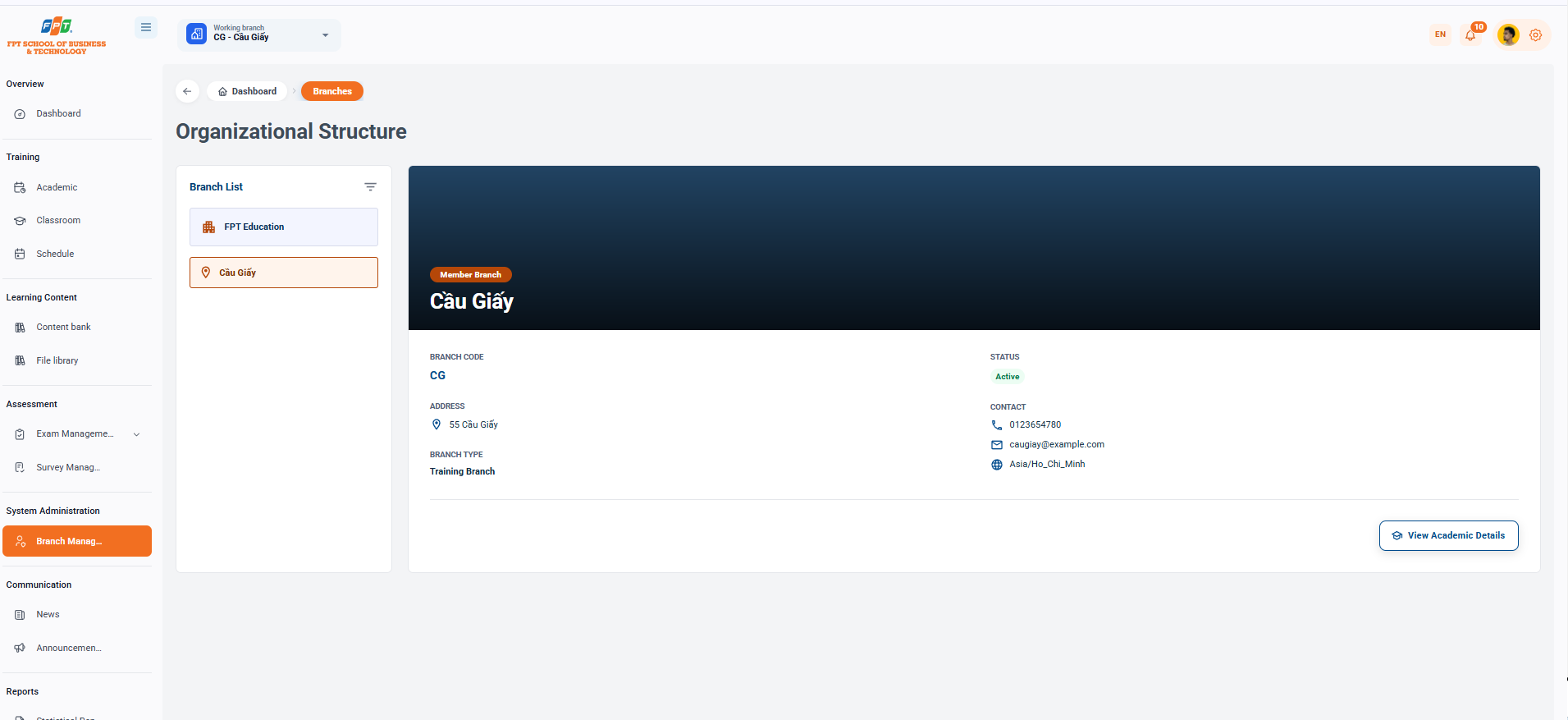
The Branch Management subdivision of the System Management category supports viewing general information, managing the list of member units, and tracking the operational organizational structure of the entire system.
8.1. Organizational Structure Overview
- Breadcrumb: General > Branch.
- The name of the main screen: Organizational structure.
- Screen tree: Provide a list of branch tree directories on the left and the selected unit information table on the right.
8.2. Branch and Member Unit List
The left-hand branch list box shows the organizational hierarchy:
- Parent organization: FPT Education.
- Member Branches: List of subsidiaries (e.g. Paper Branches).
- Select: Click on the name of the branch to view all the details of that branch in the right-hand view.
8.3. Viewing Branch Details
When a branch is selected (for example, Cau Giay), the system displays the following management information:
- Branch classification: Level indicator (member branch).
- Branch code: System identifier code (e.g. CG).
- Status: The state of operation.
- Address: Location of branch (e.g. 55th Street).
- Branch type: Form of operation (e.g. Training branch).
- Contact information:
- Telephone number: Hotline/contact number (e.g. 0123654780).
- Email: The representative email address (e.g. caugiay@example.com).
- Time: The time of the system used (e.g. Asia/Ho_Chi_Minh).
8.4. Quick Access to Branch Academic Management
- Functional button: Click the [See Philosophy] button in the right corner below the branch information box.
- Purpose: Quickly transfer to the school information management system and the branch's own training program.