
Survey Management Teacher Guide
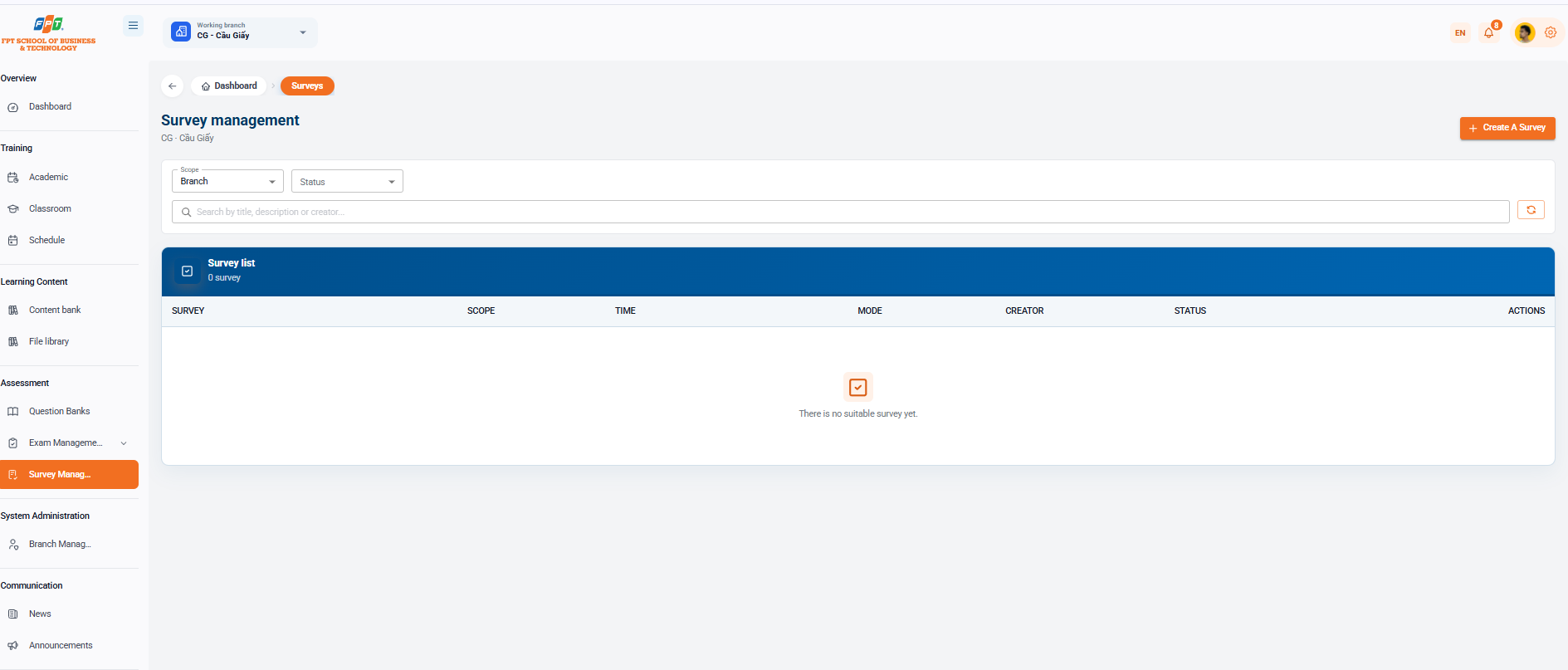
The Survey Management System under the Assessment and Evaluation section assists administrators and management staff to gather feedback, assess the quality of teaching, courses as well as other training activities at the branch.
9.1. Interface Overview
- Breadcrumb: General > Surveys.
- Title: Survey Management (branch: CG - Cau Giay).
- Table statistics: Displays the total number of surveys (e.g. 0 surveys when no data is available).
- Filter & Search:
- Follow the dropdown Range (default: Branch) and Status.
- Oh search: Search by title, description or creator...
- The [Reload] button (rotation icon) to update the list data.
9.2. Survey List
The management board tracks the list of survey votes that are initiated in the system:
| Surveys | The scope | The time | The form | The Creator | The State | The work |
|---|---|---|---|---|---|---|
| (Not a suitable survey yet) | — | — | — | — | — | — |
9.3. Creating a Survey
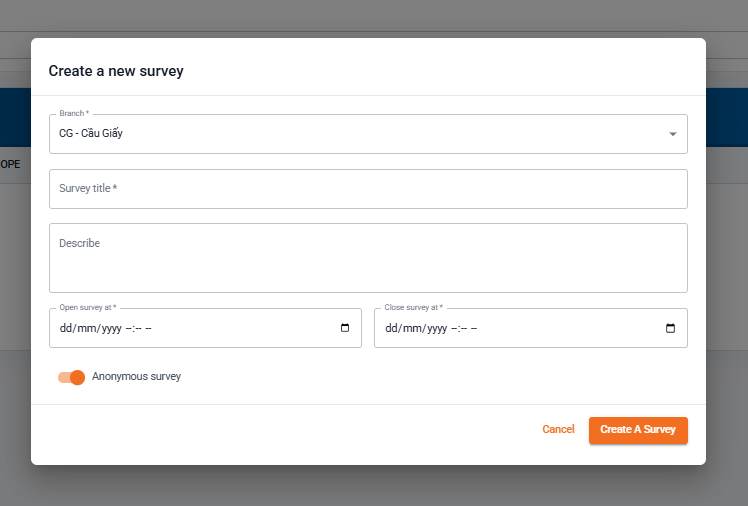
Click the [+ Create Survey] button (orange) in the top right corner of the screen to open the setup form:
Configuration Fields
- Branch (*): Select the branch that applies the survey (definition: CG - Cau Giay).
- Survey title (*): Enter the name/title of the survey programme.
- Description: Enter the purpose details or instructions as survey for the participants.
- Open the survey at (*): Select the date and time of start of the survey (dd/mm/yyyy --:--).
- Close the survey at (*): Select the date and time of completion of the survey (dd/mm/yyyy --:--).
- Anonymous survey: Turn on/off the switch if you want to collect aerial feedback on the name/information of the participant.
- Click [Create Survey] to complete the startup or [Remove] to close the window.