
Survey Management User Guide
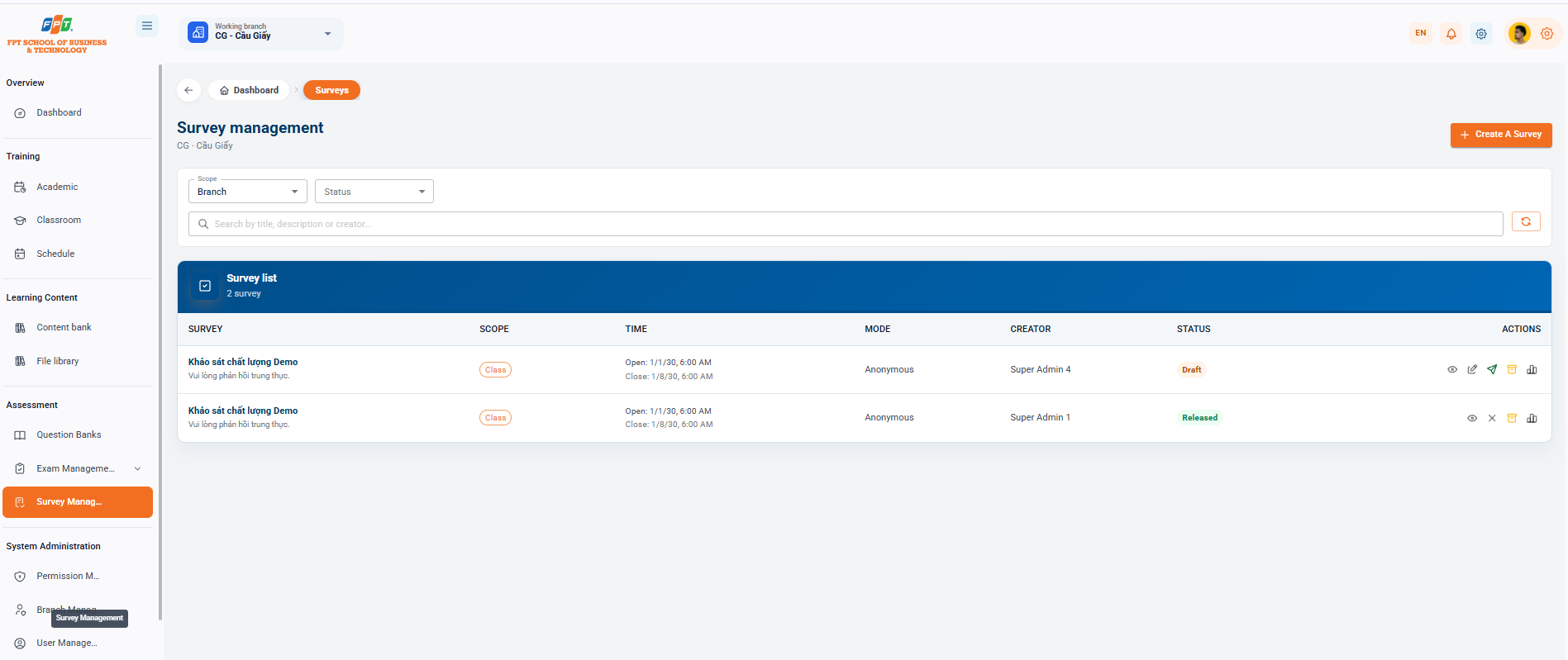
The Survey Management Division of the Assessment and Evaluation section assists administrators in creating, issuing and collecting feedback, assessing quality from students or faculty in the system.
9.1. Survey Management Overview and Filters
- Breadcrumb: General > Surveys.
- Title of the system: Survey Management (applies to the work branch, e.g. CG - Cau Giay).
- Functional button: Click the [+ Create Survey] button (orange) in the top right corner to set up the new survey.
- The search filter:
- Scope: According to the scale of application (e.g. Branch, Classroom).
- Status: Following the progress of the survey.
- Search: Enter the keyword to search for in Search by title, description or creator....
- Download button: Click the arc icon to update the list.
9.2. Survey List
Detailed management table of existing survey votes on the system (there are now 2 surveys):
| The Search | Scope | The Times | The View of Knowledge | The Creator | The Sun | The Book |
|---|---|---|---|---|---|---|
| Demo quality survey (Description: Please answer honestly.) | Classes | Opening time: 6:30 Closing: 06:00 8/1/30 | - By name. | Super Admin 4 | Draft | See / Repair / Publish / Remove / Report |
| Demo quality survey (Description: Please answer honestly.) | Classes | Opening time: 6:30 Closing: 06:00 8/1/30 | - By name. | Super Admin 1 | Released | Watch / Cancel release / Remove / Report |
9.3. Survey Management Actions
- Eye icon (See detail): See the question content and detailed configuration of the survey.
- Pen Tree icon (Edited): Update survey information (available only with surveys in the Flagship state).
- Paper flying machine icon (Practical): Activate the issue of survey votes to the target audience.
- X-mark icon (Canceled release): Stop or withdraw the survey has been issued.
- Trash Box icon: Remove survey results from the system.
- Report/Statistics icon: See the summary of survey responses and statistical charts.