
Question Bank User Guide
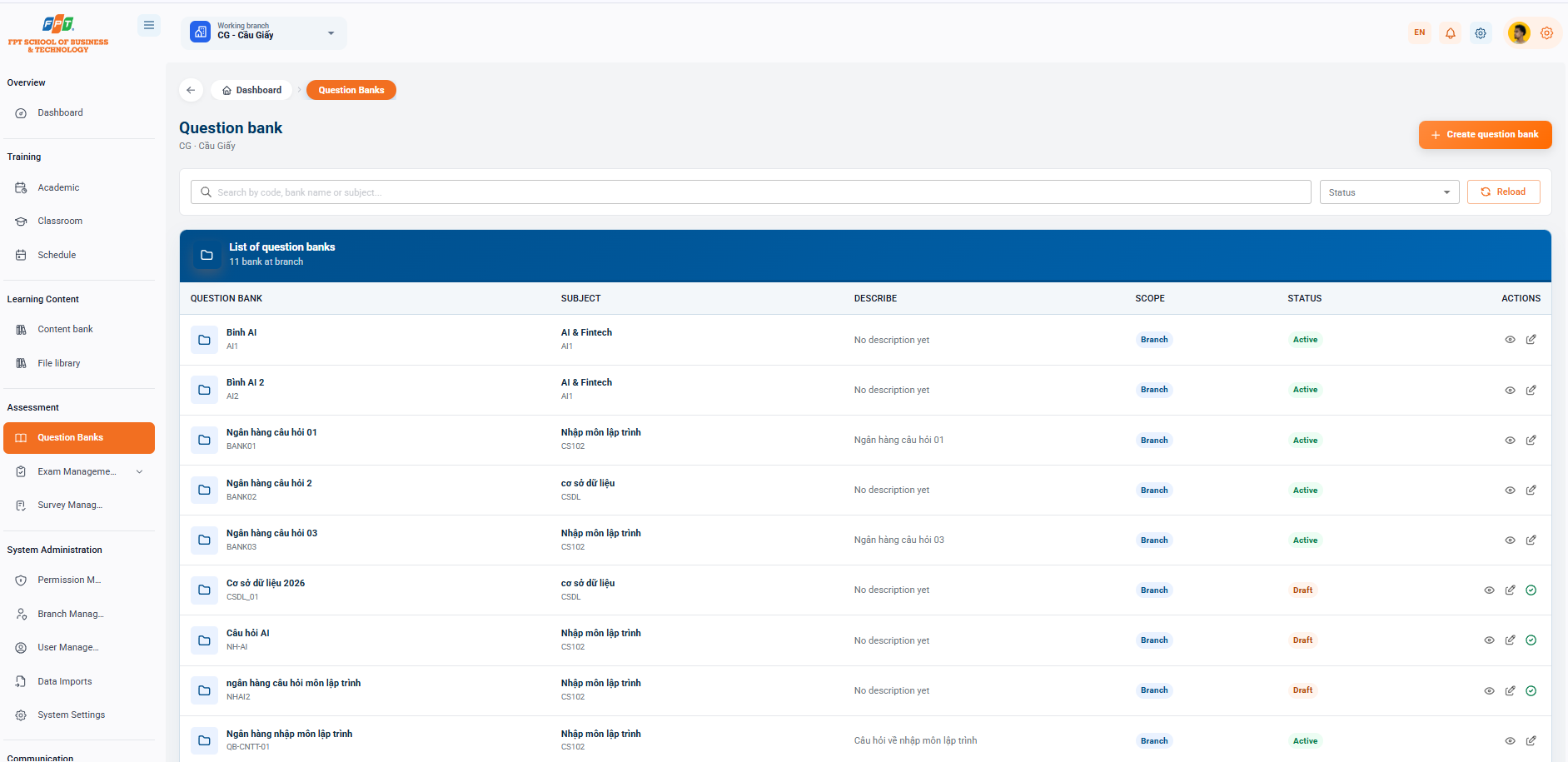
The Question bank's Assessment and Evaluation system supports administrators in creating, classifying and storing a collection of questionnaires for each branch's subject.
7.1. Question Bank Interface Overview
- Breadcrumb: General > Question bank.
- Title of the system: Question bank (applies to the work branch, e.g. CG - Cau Giay).
- Functional portal: Click the [+ Create bank] button (orange) in the upper right corner to start the new question bank.
- Filters and Search:
- Search: Search the list by codeword, bank name or subject name in the search box Search by code, bank name or subject name....
- Status reading: Read the list by drop-down menu to Status.
- Download button: Click [Download] to update the list data.
7.2. Managing the Question Bank List
The list table shows the existing question banks at the branch (there are now 10 banks at the branch):
| Question bank | The School | The Mountains | Scope | The Sun | The Book |
|---|---|---|---|---|---|
| Binh AI (Man: AI1) | AI & Fintech (School: AI1) | Not yet described. | Branches | Active | See / Fixed |
| Question bank one (Male: BANK01) | Get into programming (School: CS102) | Question bank one | Branches | Active | See / Fixed |
| Question bank two (Male: BANK02) | the database (School: CSDL) | Not yet described. | Branches | Active | See / Fixed |
| Question bank three (Male: BANK03) | Get into programming (School: CS102) | Question bank three | Branches | Active | See / Fixed |
7.3. Question Bank Management Actions
- Eye icon (See detail): Access the question bank to view, add new or edit the detailed questions in that bank.
- Pen Tree icon (Edited): Updates the question bank configuration information such as bank name, link subject, description or status. The following is a section of the Guide to Exam Management (Exam Review and Assessment) documentation compiled in sequence to the standard title format for Google Docs: