
News Page
- News page
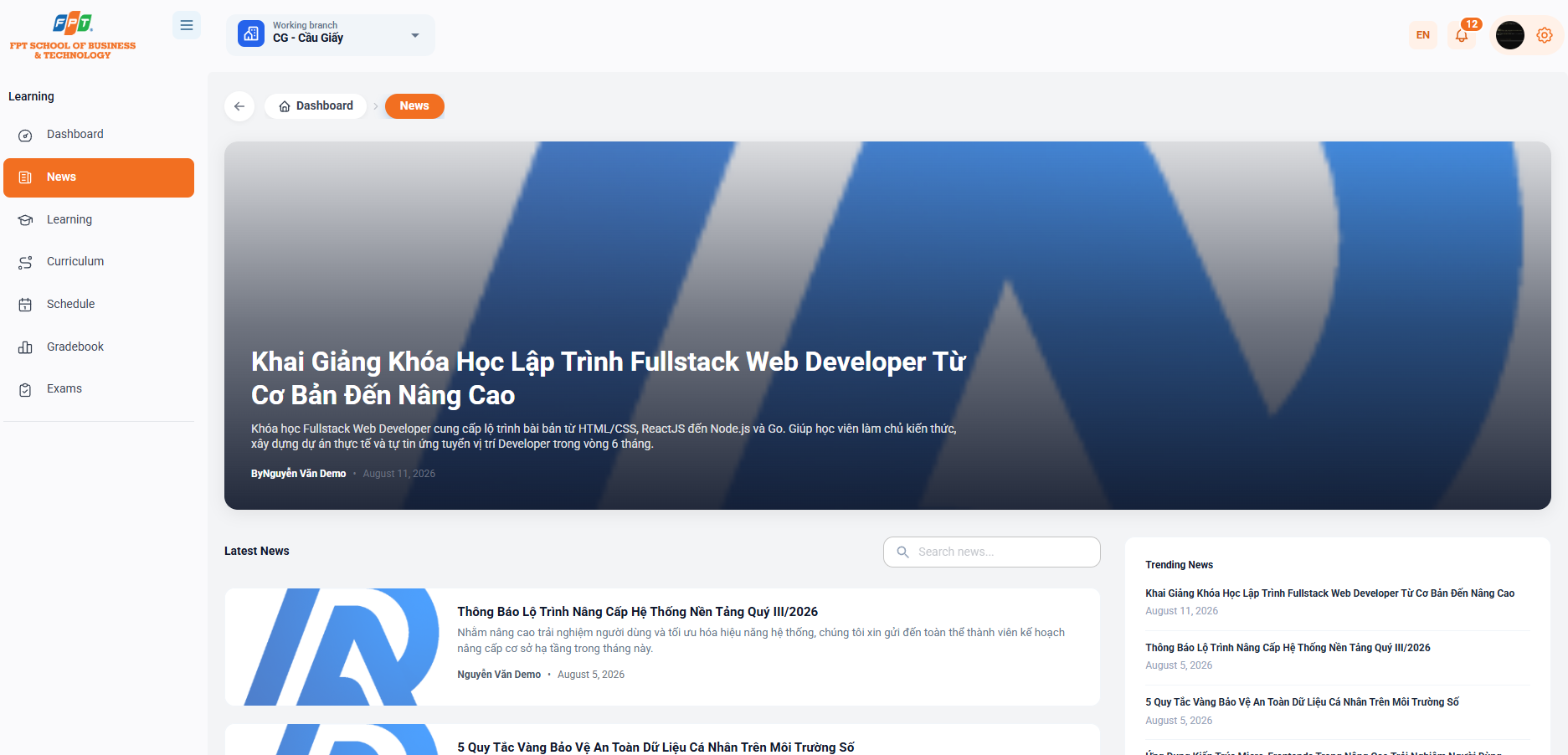
The News Page is a place to keep up-to-date with the latest information, announcements, training itineraries, promotional events and professional knowledge for students.
7.1. Featured News Banner
- Location: Placed at the top of the page with a large size and prominent interface.
- Display: The most important or latest article from the system.
- Details: Includes article title, short summary, publisher's name (By Nguyen Van Demo) and publication date.
7.2. Article Search Bar
- Function: Enter the keyword Search news... allowing students to quickly search for articles, announcements by title or desired content.
7.3. Latest News List
- Presentation format: Card List sorted by the most recent time.
- Structure of each article:
- Thumbnail: This is a visual illustration.
- Title: Highlighted, click to see details.
- Summary: Help the reader to grasp the meaning of the article quickly.
- Additional information: Author of the publication and date of publication.
7.4. Trending and Most-Viewed News
- Location: The column to the right of the screen.
- Display: A shortlist of articles that are of the most interest helps the student not to miss out on important information in the system.
8. Article Details
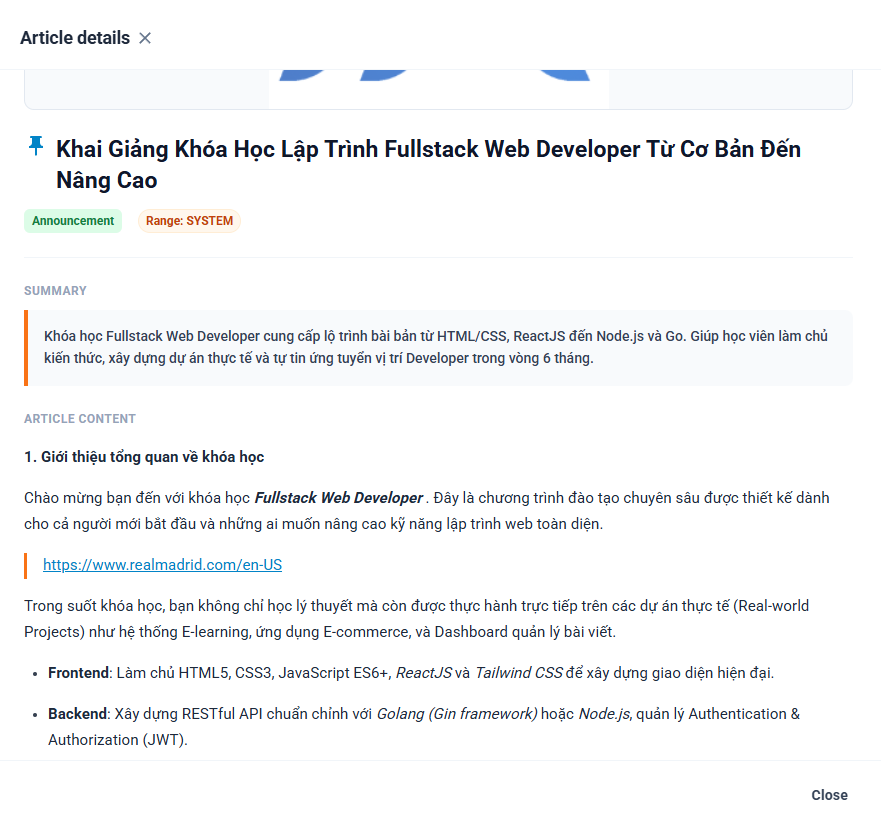
When a student clicks on any post, the detailed view interface will appear as a Modal Pop-up that helps track the full content without having to move the page.
8.1. Header and Category Labels
- Post title: Placed in a prominent position, with a pin symbol ($\boldsymbol{\dagger}$) for important articles/newsletters.
- The status labels
- Published status: Published (blue).
- Application scope: Scope: SYSTEM (orange) or scope by class/branch.
8.2. Featured Image and Article Summary
- Article banner image: The image is clearly displayed at the top of the content.
- Summary Box: Framed with a prominent orange border, a brief quotation of 1-2 sentences about the core content of the notice/text.
8.3. Full Article Content
- Detailed presentation of the entire text, images, instructions or specific pathways in clear heading (e.g. 1. Overview of the course...).
8.4. Closing the Article View
Students can close the detail view and return to the news list by:
- Press the [X] button
- Click the [Close] button in the bottom right corner of the window.
- Or click out.